Synchronize SharePoint Validity Dates
A synced SharePoint folder can import a file's Valid from and Valid to dates from SharePoint columns. This requires a Microsoft work or school credential; the validity fields are not available for personal accounts.
Set dates in SharePoint
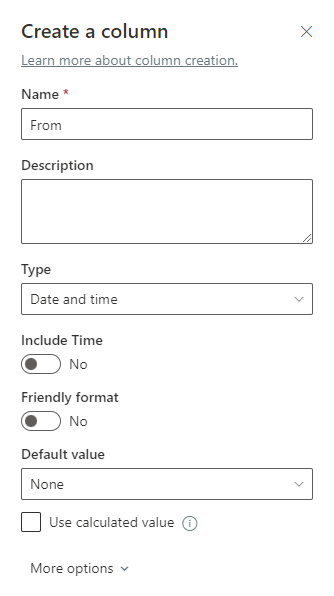
Create a Date and time column for each value you want to sync, such as From and To. Use clear names so you can enter them exactly in Wallboard.
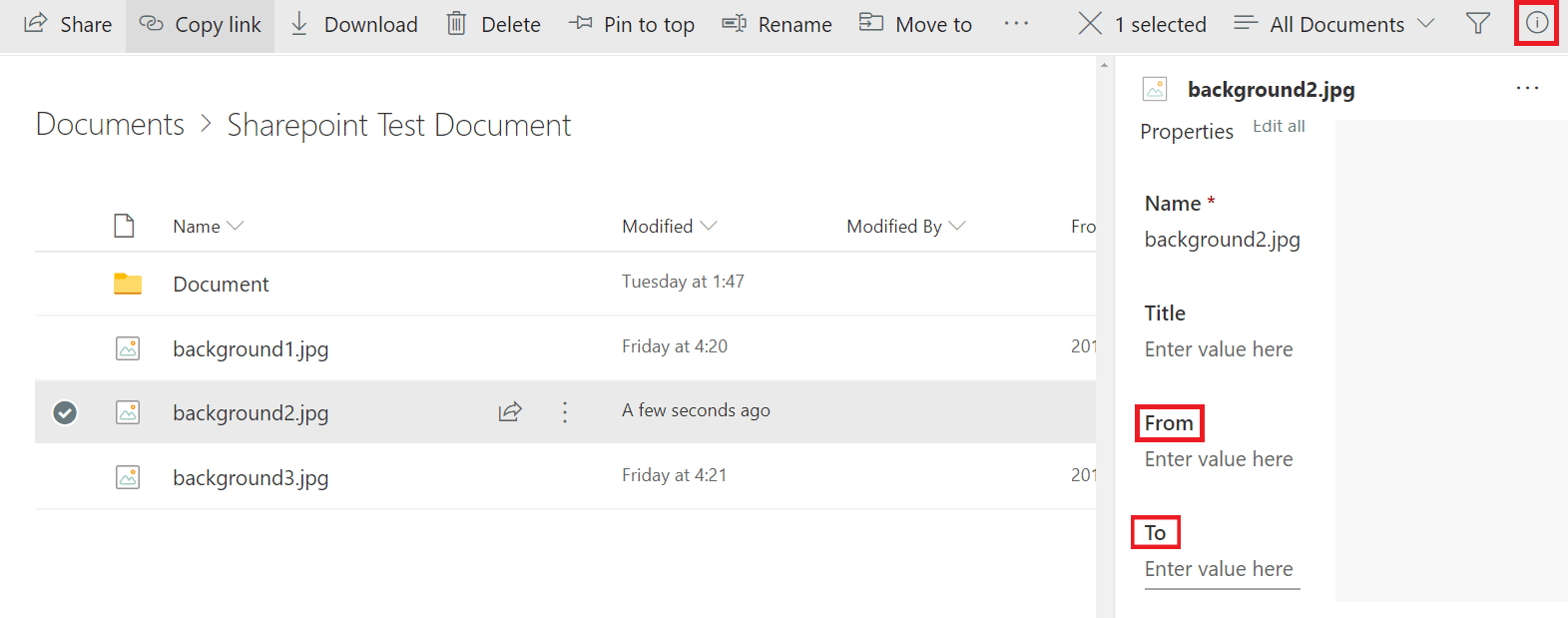
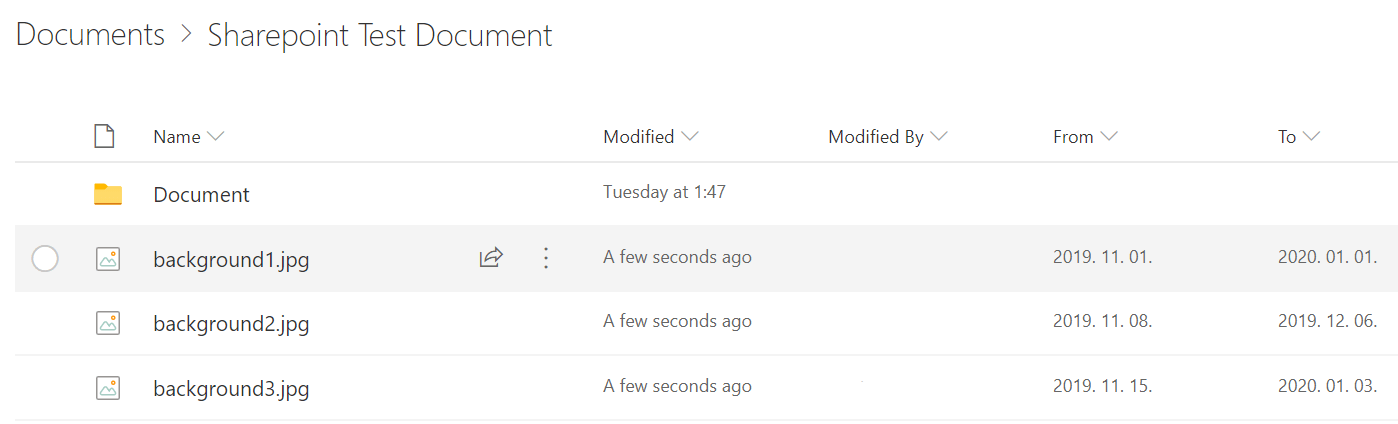
Select a file in SharePoint and open its details panel. Enter the dates in the new columns for each file whose validity you want to control.
Connect the folder in Wallboard
- Create a Microsoft credential with the work or school account type.
- In the Files menu, open the add menu and select Connect Microsoft OneDrive folder. Choose the credential and the SharePoint site, drive, and folder.
- In Connection settings, enter the exact SharePoint column names in Valid from and Valid to. You can fill either field or both. Choose the other sync settings, then select Connect.
If the credential uses a resource access list, include the site, drive, and folders you need; access to a parent does not automatically include its children. See Connect Microsoft OneDrive folder for the sync modes and other connection settings.
A missing or incorrect column name leaves the corresponding validity date empty in Wallboard. Passive sync can also update validity dates when it detects a change to the SharePoint file.