Replace File References
Use Replace file in the Files menu to update references to a file without editing each content item individually. The replacement must be in the same folder and have a compatible file type. Changes to file references are permanent.
Choose a replacement
In the Files menu, right-click the file you want to replace and select Replace file. Then choose From computer to upload a new file, or From files to select a file already in the same folder.
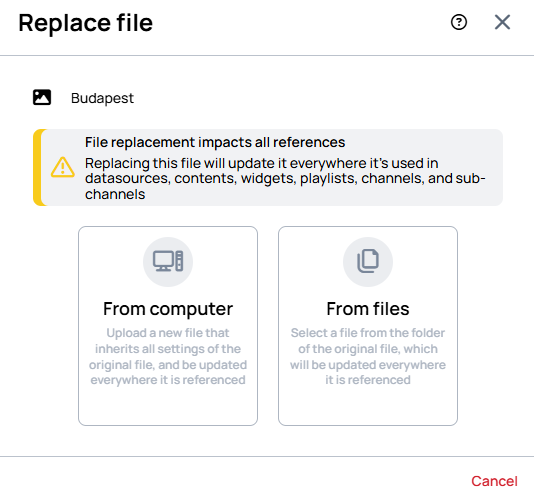
Uploading a new file is available in regular folders. The uploaded file inherits the original file's metadata, tags, and validity dates. In a shared folder, use From files instead.
When you select an existing file, it keeps its own metadata, tags, and validity dates. If team assignments need resolving, choose what the replacement file should have:
| Team assignment option | Result |
|---|---|
| Merge | Combine assignments from both files. |
| Keep existing | Use the original file's assignments. |
| Replace | Use the selected replacement file's assignments. |
The dialog shows the resulting teams before you save. When you upload a new file with From computer, Wallboard merges its team assignments with the original file's assignments automatically.
Review and save
Select the replacement file. If you also want to delete the original file, enable Remove original file, then select Save. Leave the switch off to keep the original file in Files.
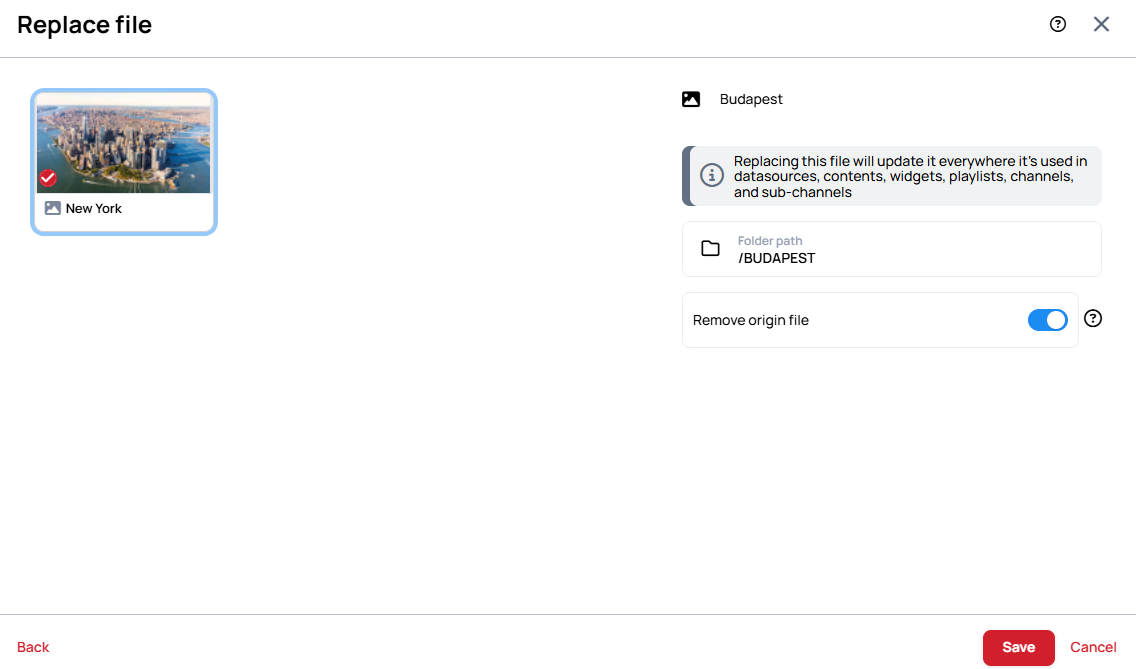
Replacement uses the new file's ID for future playback records. Earlier proof-of-play records are not reassigned to the replacement file. Removing the original file deletes that file from Files; review whether you still need it before enabling the switch.