Connect Microsoft OneDrive folder
Connect a Microsoft OneDrive folder to bring selected files into the Files menu. Wallboard checks connected folders periodically when automatic synchronization is enabled; changes do not appear instantly.
Users with access to the synced folder in Wallboard can work with its imported files without needing each file shared with them separately in OneDrive.
Connect a folder
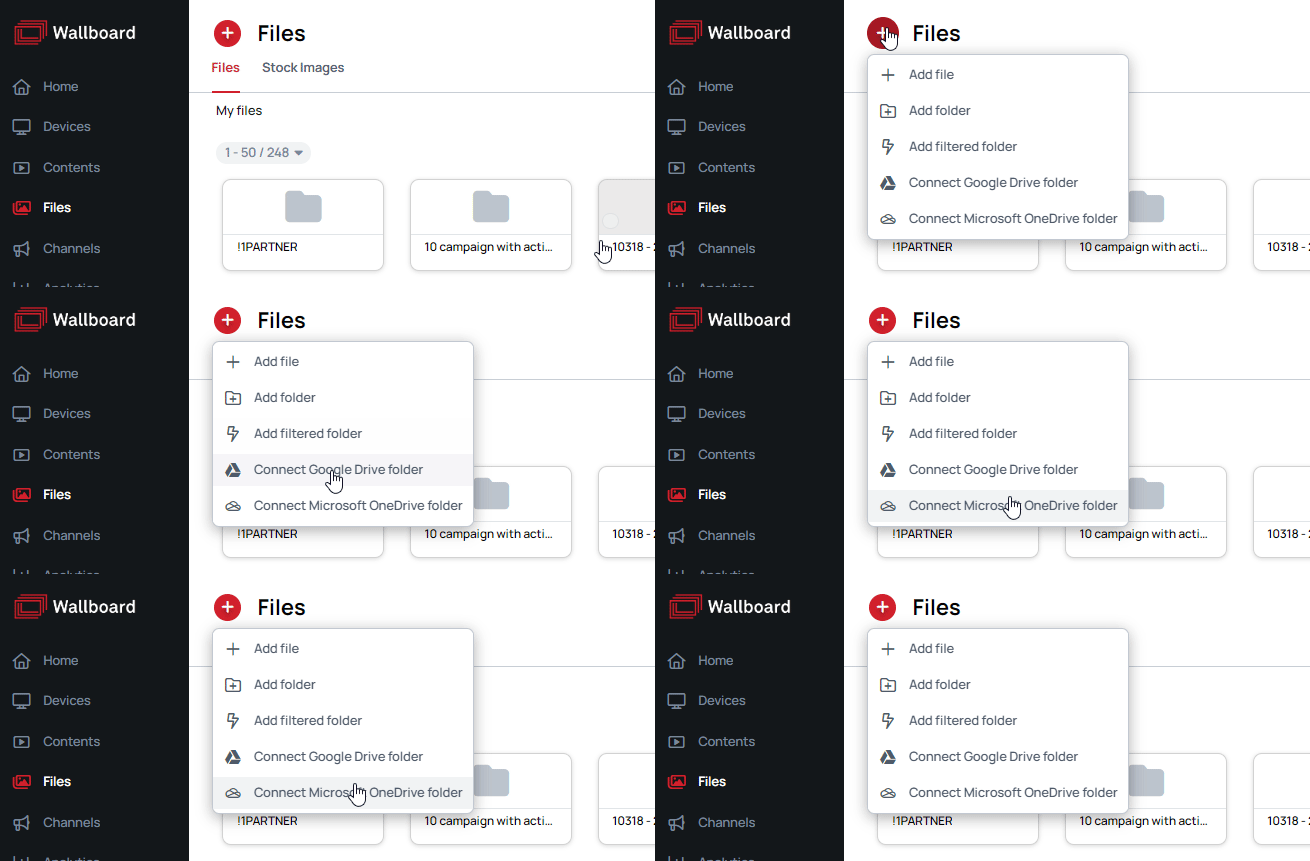
- In Files, open the add menu and select Connect Microsoft OneDrive folder.
- Select a Microsoft credential with access to the folder, or create one. See Create Microsoft credential.
- Select the folder, choose a sync mode and file types, then select Connect.
With a personal account, select a folder directly. With a work or school account, select its site and drive first. Work or school accounts can also set Valid from and Valid to column names for synchronized file validity.
If the credential uses a resource access list, include each site, drive, and folder needed for the connection. Access to a parent does not automatically grant access to its children in the folder picker.
Sync modes
Choose how Wallboard handles changes to files already imported from OneDrive:
| Mode | Changed files |
|---|---|
| Passive sync | New selected files are imported, but changes to existing files are not downloaded again. |
| Active sync, Smart file update off | A changed file is imported with a new file ID. Existing references to the old file are not updated. |
| Active sync, Smart file update on | A changed file gets a new file ID, and Wallboard updates references from the old file to the replacement. |
Choose Passive sync if you want new files to appear but want Wallboard's existing copies to stay as they are. Choose Active sync if edits to existing OneDrive files should reach Wallboard; enable Smart file update when content already referencing those files should follow their replacements. Neither mode makes changes appear immediately.

Smart file update
Smart file update is available with Active sync. It updates references to a changed file when the sync replaces that file. The replacement receives a new file ID; this setting does not preserve the original ID or move earlier playback records to it.
File types and later changes
Select the file types to import. Images and videos are selected by default; the dialog can also offer audio, fonts, PDFs, Excel files (XLSX), Word documents (DOCX), and PowerPoint presentations (PPTX). The Office formats are imported as PDFs.
The Sync file removal and Sync folder removal switches control whether items removed from OneDrive are also removed from the synced folder. Review these settings before narrowing the selected file types: with Sync file removal enabled, files excluded by the new selection can be removed at the next sync.
After connecting, use the folder's context menu to edit synchronization settings or folder structure, toggle automatic synchronization, force a sync, or detach the credential. Detaching the credential stops synchronization and leaves a regular Files folder.