Home screen
The Home screen gives you shortcuts, device statuses, recently added content, datasource alerts, and device alerts. You can navigate with either the sidebar or the shortcuts.
Explore from the Home screen
The shortcuts open these sections:

- Devices — Manage and monitor online and offline devices and device groups.
- Contents — Create and manage your digital content.
- Files — Organize and manage images, videos, sound files, and custom text fonts.
- Channels — Control playback, timing, and organization of playlists, contents, messages, files, and file folders at scale.
- Analytics — Track device metrics, proof-of-play reports, and content activity.
- Settings — Manage configurations related to your client.
- Network — Connect an Owner client with one or more Member clients. Available to Network Owners and users with the Can access network member option enabled.
Quick access
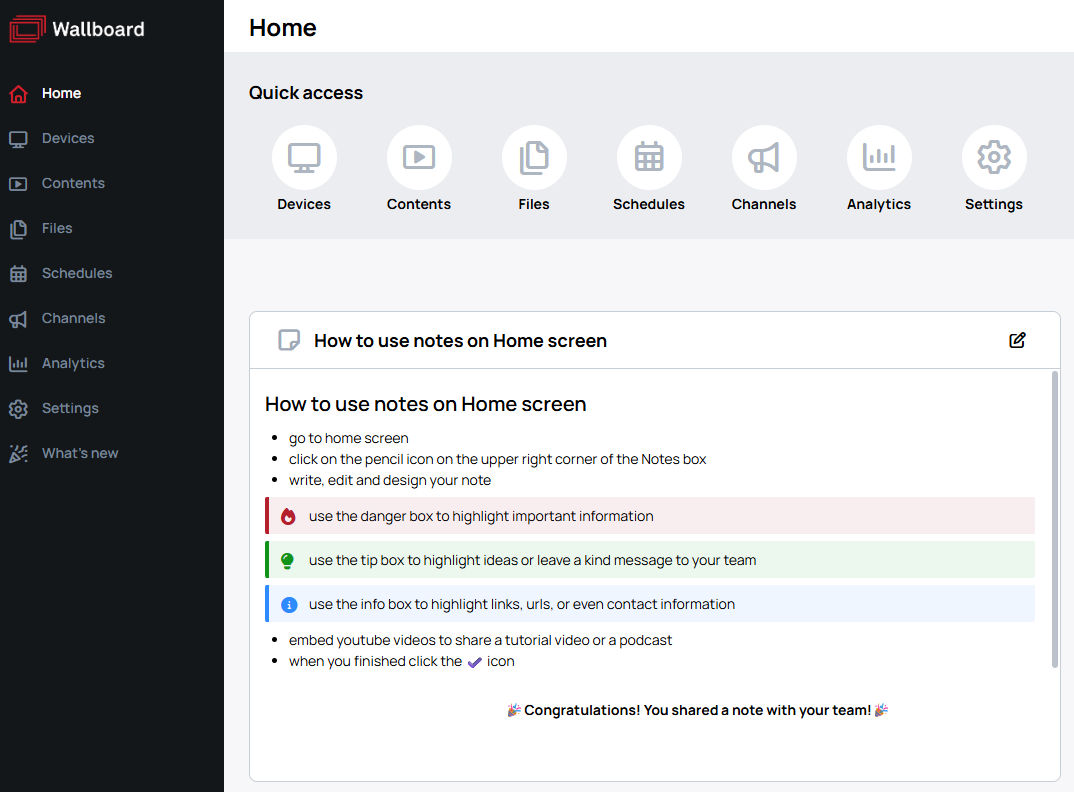
The Quick access strip holds the shortcuts at the top of the page. It appears on the Home, Analytics and Settings pages, and on all three you can reorder its shortcuts and hide the ones you do not use.

Click Customize at the right of the strip to start. Each shortcut then carries a remove badge, and Reset, Cancel and Done appear alongside — nothing is saved until you click Done.

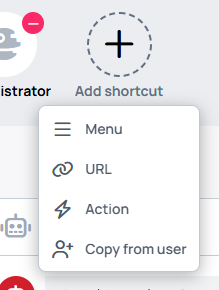
On the Home page an Add shortcut tile also appears, offering four kinds:
-
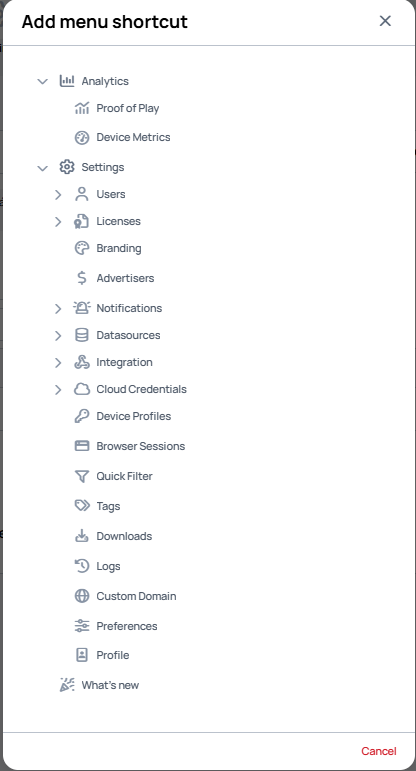
Menu — pick any menu or sub-menu from a tree of everything you can reach.
-
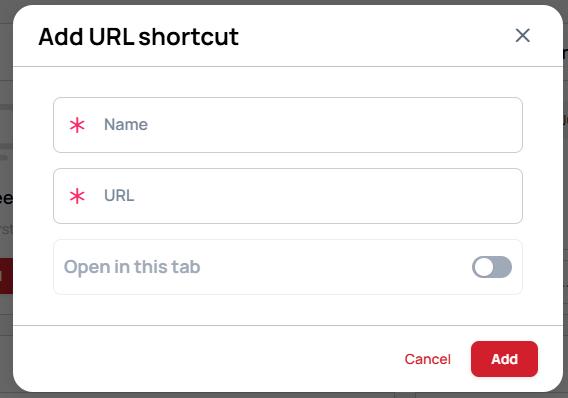
URL — give a Name and a URL. Open in this tab controls whether it replaces the current page or opens a new one.
-
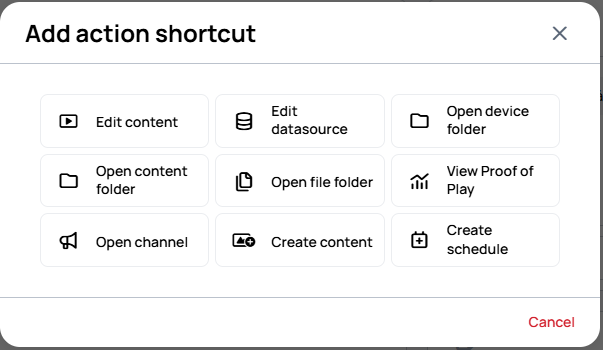
Action — a specific task rather than a destination: Edit content, Edit datasource, Open device folder, Open content folder, Open file folder, View Proof of Play, Open channel, Create content, Create schedule.
-
Copy from user — take a whole layout from another user in the same customer, chosen by name in the Copy Quick Access shortcuts dialog.
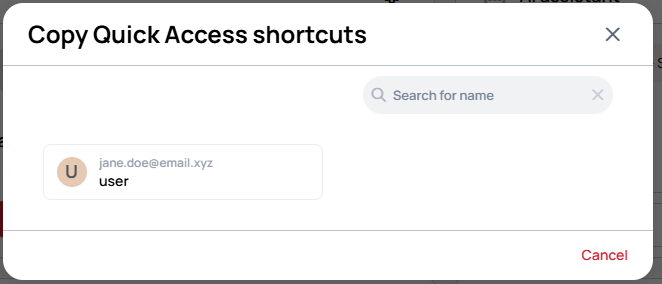
Quick access is personal to each user, so arranging your own does not change what anyone else sees.
Home cards
The cards on the Home page can be moved and hidden, and a Notes card lets you write something down for yourself or share it with your team.
To write or change a note, click the pencil icon in the upper right corner of the Notes card, and confirm with the check icon when you are done. The note is not limited to plain text — it takes lists, highlight boxes for important, helpful and informational passages, links, and embedded videos.
Unlike Quick access, the card arrangement and the notes apply to the whole customer, so every user sees them — each user still only sees the cards their role and user interface profile give them access to.
Pinned folders
A folder can be pinned so that it always sits at the top of the list, which keeps whatever you work with most within reach. Pinned folders are listed on the Home screen, and Manage pins opens the full list.
- Pins are personal to each user.
- The list spans every customer you have access to, so clearing it removes pins everywhere.
- You can pin up to 100 folders. Remove some to pin new ones.
- A pin you can no longer reach is marked as inaccessible, either because the folder was deleted or because you lack permission for it. If a View as team selection is active, switch back to all teams before assuming a pin is gone.
Recent folders
Recent folders lists the folders you last worked in, so you can return to one without walking down the tree again. You can clear the list when you no longer need it.
Devices, Contents and Files also remember the folder you were last in. Leaving one of those menus and coming back reopens that folder instead of the root.
Open items in a new browser tab
Middle-clicking on a file, content, device, schedule, or channel card — or any of their folders — opens the item in a new browser tab. This works the same way as middle-click in other web applications and is useful when you need to inspect or edit multiple items side by side without losing your current view.