Using Fonts
Font settings
Navigate to Widget properties / Main
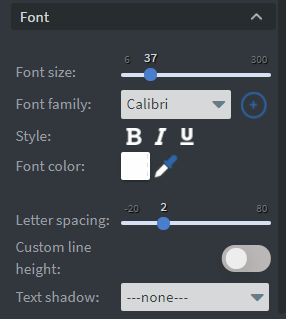
In the font menu you can adjust text settings.
Compatible widgets
You can change the font in these widgets:
- Text
- Clock
- Scroll
- Weather
- Image Gallery (Caption)
- Cooltext
- & More
Menu details
Font size
You can change the font size of the text from 6 to 300.

Font Family
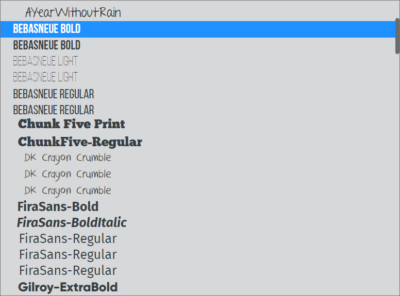
You can select from default font families or choose your own custom font.

Style
You can change the style of the text to bold, italic, underline

Font Color
You can change the font color, see Using colors for additional information. With the color picker you can select the color from your Content.

Letter spacing
You can change the space between the letters from -20 to 80.

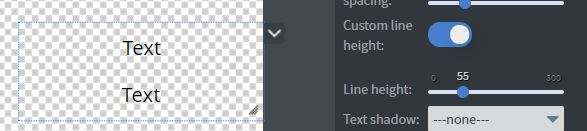
Custom line height
You can set the height of the text lines from 0 to 300.
Text Shadow
You can modify the text-shadow with a dark and light adjustment.

Letter case
You can set a latter case for your text. You can choose from uppercase, lowercase or capitalize.

Dynamic font size
Dynamic font size enables a dynamic sizing inside widgets, that will allow the text to fill the given space without resizing the widget.
Dynamic font maximum font size: This value defines the maximum font size that the text can inherit on the given width and height of the widget.
- This can break the line for better fit. No line break: If you enable this option the text will not break the line and will adjust itself to the width of the widget.

Scrollable
If your text is really long you can set it to be scrollable. This is useful with touch screens.
- Only available for Text widget

Vertical and Horizontal
You can adjust the vertical and horizontal alignment of your text.

Custom Font
Supported font-formats
- otf
- ttf
- woff
- woff2
Upload Custom Font
- Add a widget down, where you can change the font family. Click on the
+icon.

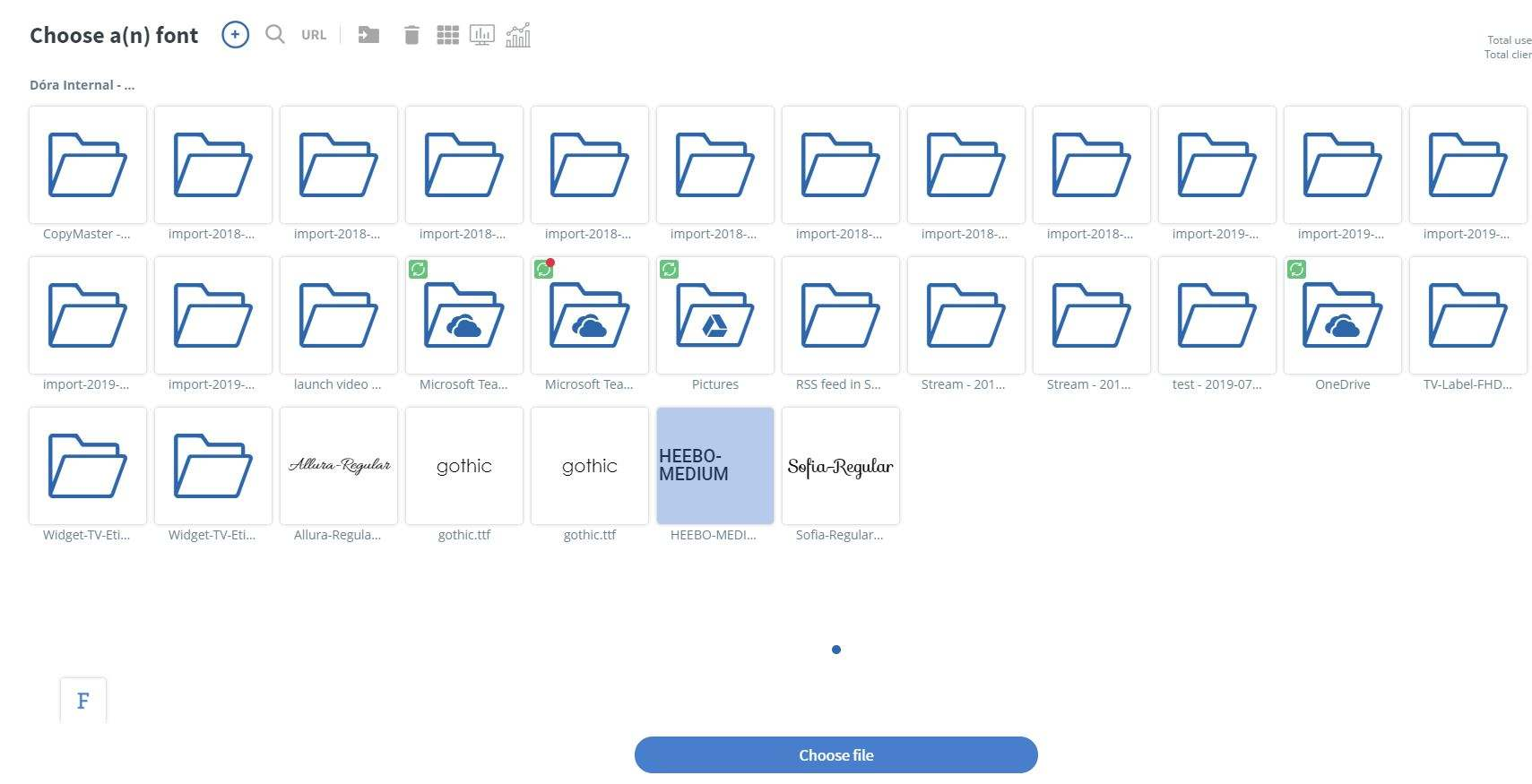
- The File Manager will pop-up and you can upload your font by clicking on the (+) icon and upload all of your fonts
- Or Drag&Drop to the File Manager.

- When your Custom Font is uploaded you can see them in your Folder. You can now select the font to be used.
Use custom font
You can select it from the Font family selector. In the selector there are separate tabs where you can see all the fonts.
- Recent: You can see which fonts you've used recently in your Contents
- Custom: Your uploaded Custom Fonts
- Normal: The default Fonts that can be displayed on all devices
- Windows Only: Fonts that can be only displayed on Windows devices
- Headline: Fonts that look great as a headline
- Digital: Fonts that look modern
- Fancy: Fonts that look like handwriting
- New Fonts: Fonts that are newly updated to our system
- Not Google fonts: Fonts that are not Google Fonts