Introducing - Slide Designer
In this article, we’ll introduce the Slide Designer—a streamlined version of our reliable Content Designer, offering similar functionality with a few key limitations.
What are Slides?
Slides are simplified content types made up of a single page. They don’t support fully embedding other contents, which keeps them lightweight and straightforward. This makes them ideal for use in Playlists where you want to go beyond basic images and videos and create more refined or custom designs.
However, they do have limited embedding options available. Slides have the following options to bring in embedded content:
- Slide widget
- Playlist widget
- Channel widget
Main areas of the Slide Designer
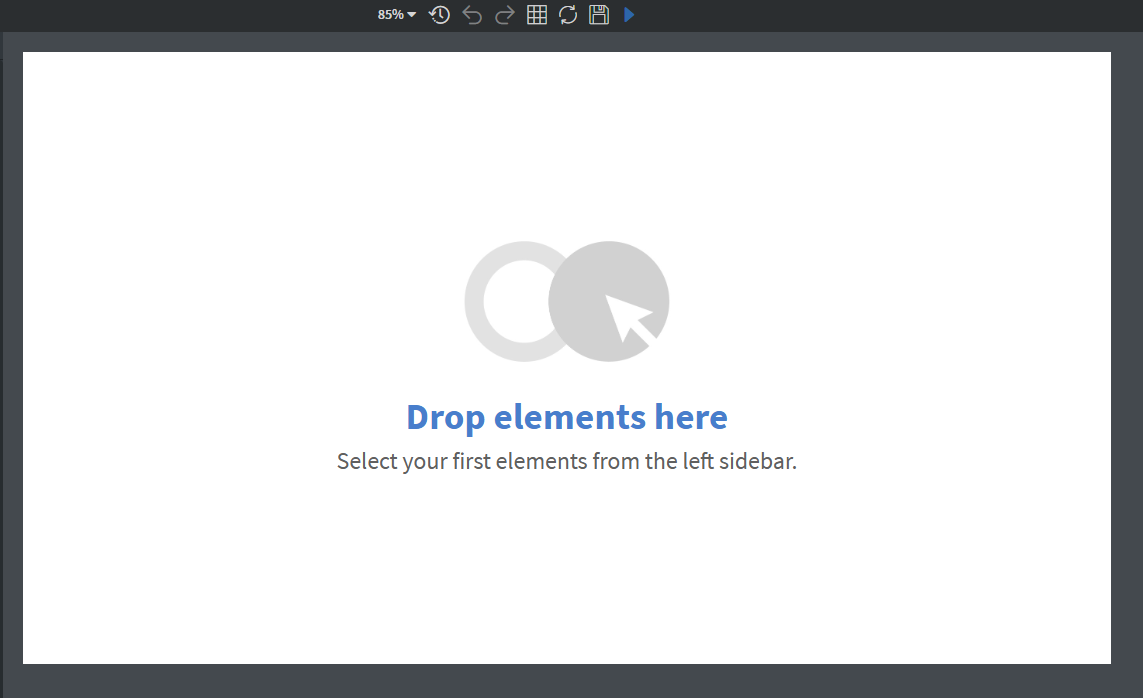
Canvas
In the center of the designer area, you will find your canvas.
Widgets
On the left side of the designer area near the canvas, you can see the widgets.
- You can add widgets by dragging and dropping them onto the canvas.
- You can search, favorite and sort them — see Widgets Sidebar.
Learn more: Widgets
Properties
You can edit your widgets, Page, Content, and Editor settings in the Properties Menu.
Learn more: Properties Sidebar
Layers
In the bottom right corner, you can manage your layers.
Learn more: Layers Sidebar
Header Area of the Designer

Top toolbar
At the top, you can set the following options:
Slide duration based on
With this option, you can set the duration of the slide by selecting an existing widget that can have a duration like video, audio, or gallery widgets.
- Supported widgets: Video, Videos, Audio, Gallery
- This setting is optional - if no widget is selected, a popup will appear when saving to remind you
Learn more: Slide duration based on
Zoom selector
With Zoom selector you can manipulate the size of the canvas.
History
The History dropdown in the top toolbar lists every autosaved version of your slide. Hover over the ⟲ button to open it and click a version to roll back to that state.
- History is session-only — it is cleared when you leave the slide or refresh the browser.
- To create a manual version entry, use the
Ctrl + Shift + Shotkey.
Learn more: Slide History and Undo/Redo
Undo / Redo
With these buttons you can undo or redo your last changes.
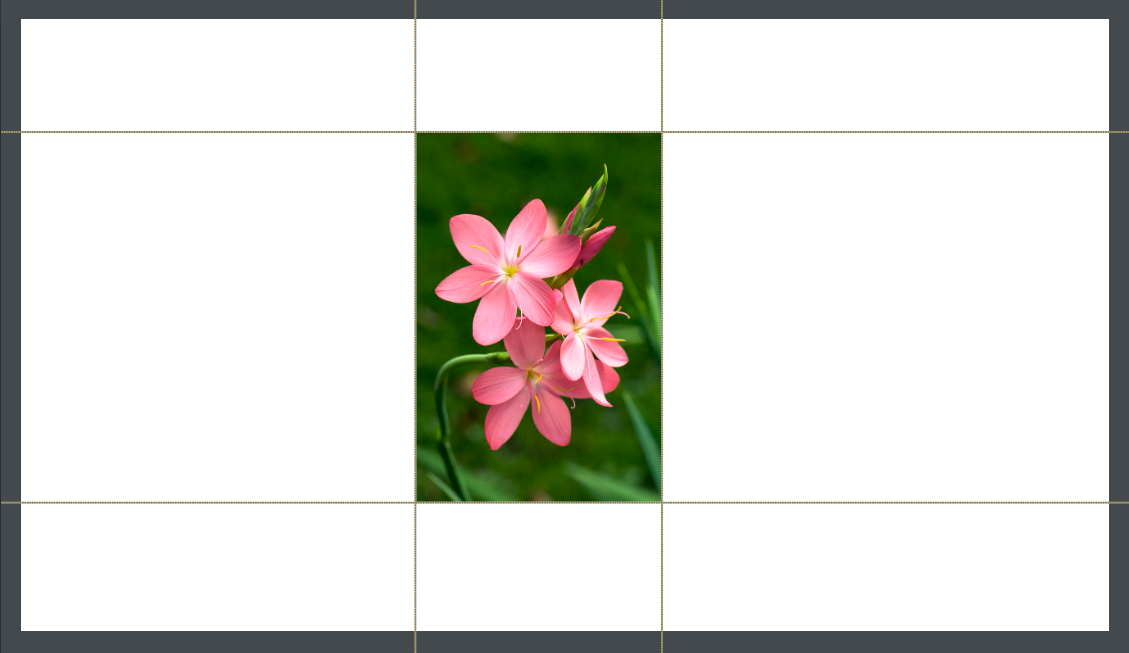
Toggle all helper lines
This option will help you to keep in line.
- If you enable it, horizontal and vertical helper lines will appear on all widgets on the canvas.
Reload datasources
If you have datasource change at the time when you edit your slide, you can refresh the loaded datasources here.
Apply branding
The button applies a brand kit to every widget in the slide that has a brand binding.
Learn more: Applying a brand kit in the designer
Save slide
Here you can save your changes in the slide.
- Do not forget to save your slide after editing!
Preview slide in the browser
With this button, you have several options to check the results of your slide in your browser page.
How can you open your slide:
Preview
This option will open the slide in browser preview.
Advanced preview
- In advanced preview mode you can add extra URL parameters to make the preview display more similar to the actual play on the device.
The following extras can be added:
- Content Sync
- Play Autosaved content
- Data row label
- Datasource
- Time zone
- Screen
Other
In the top right corner, you can toggle all hotkeys and open our Knowledge Base website with the Help button.
What can you find here:
- Slide name on the left
- Information about UI and Server version
- Hotkeys
- Help / Knowledge base articles