Quick Editor in Playlists
In this article we will show you how Quick Editor works on Playlist editor
Enable Quick Edit in Content
To enable Quick editing functionality, you have to enable Quick editing on the widgets and the base datasource that you wish to Quick edit in the future.
Learn more: Quick Editable Widgets
Learn more: Quick Editable Base Datasource
Slide as Playlist Page
When you add a quick editable side to a playlist as a page, a popup will appear where you can open the Quick Editor.
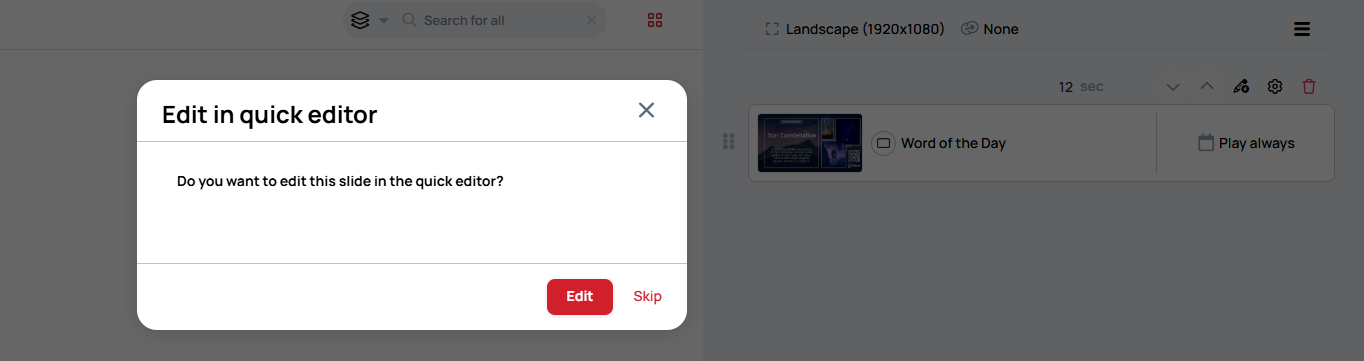
If you decide to edit it later, you can edit it with the button on the playlist card.
Displaying the same slide with different data
You can add the same slide to a playlist more than once and give each page its own values. Quick Edit values are stored on the playlist page, not on the slide, so editing one page does not change the others.
Because the copies would otherwise only be told apart by their thumbnail, each page can also be given its own name. Learn more: Rename page
If the different data comes from the rows of a datasource, add the slide as a Paginated slide instead. It automatically iterates through all datasource rows, displaying each entry as a separate playlist page.
Playlist Quick Editor
When you open the Quick Editor, you will see a list of widgets on the left side, and the content preview on the right side.
Select a widget on the left side then fill it with the desired value.
- A colored border will indicate which widget changed on the preview.
Original 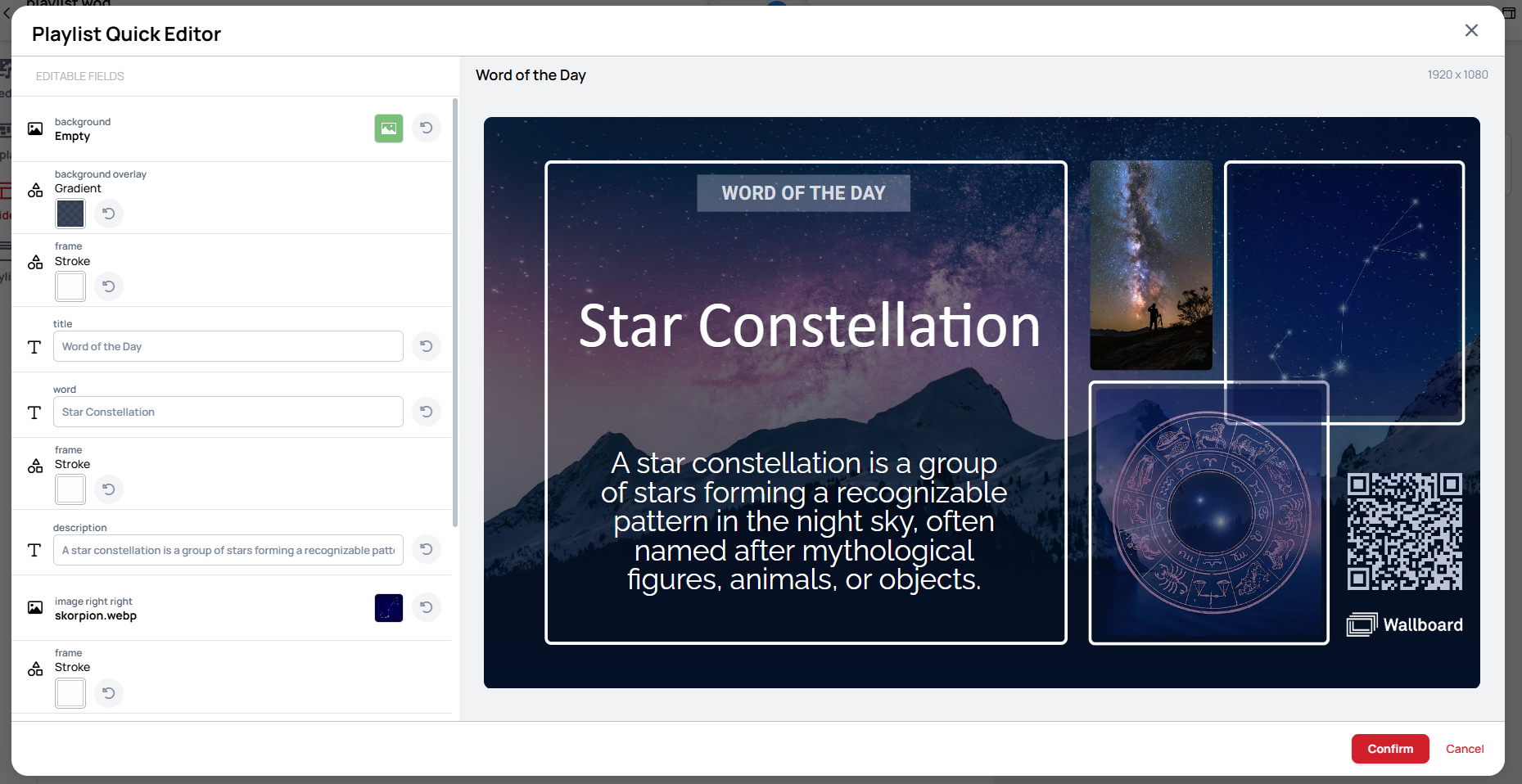 | Quick edited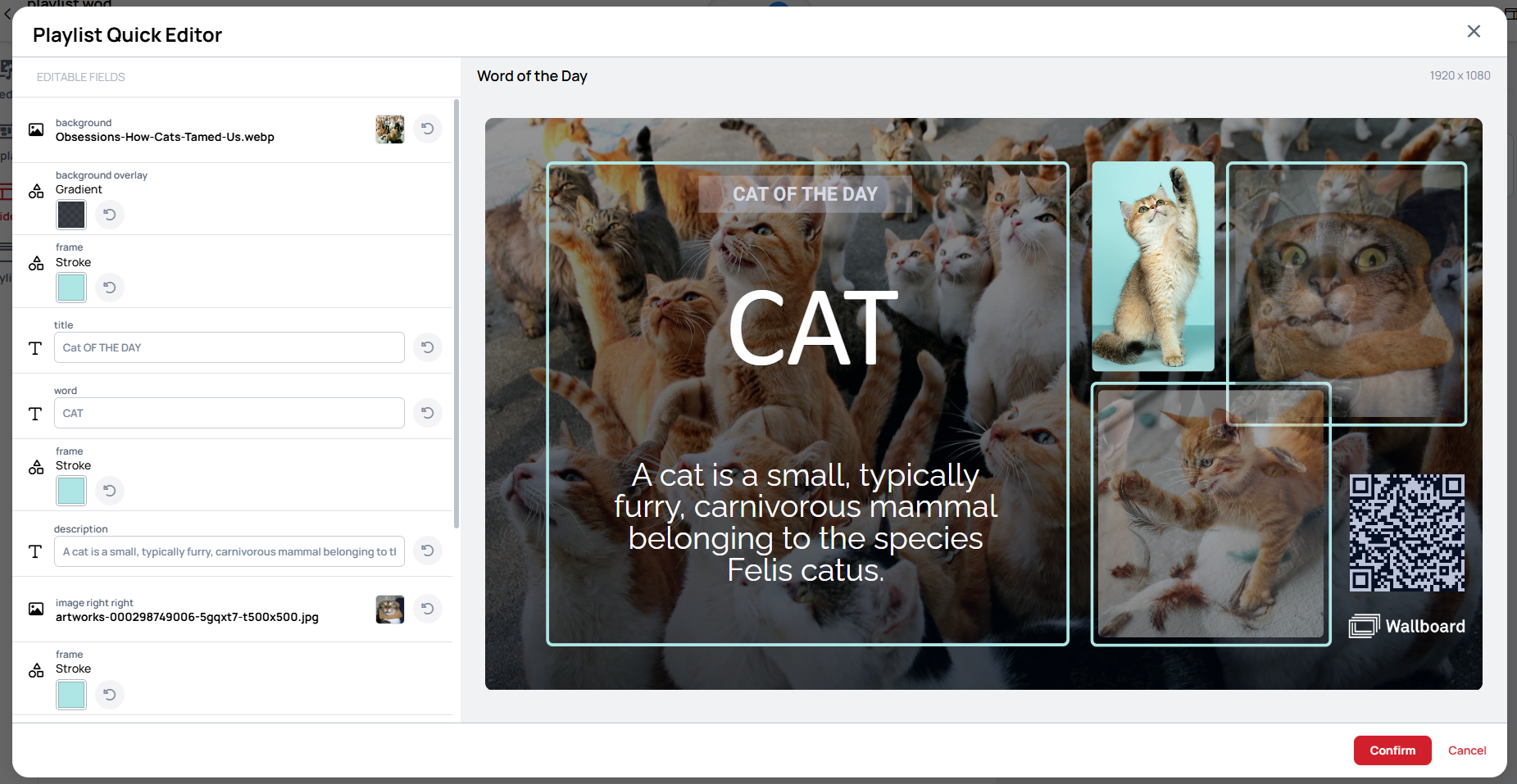 |
|---|
Reset Quick Edited value on Playlist page
If you do not need the edited value anymore, you can just easily reset it with the button.

If Disable Transitive Quick Editing is enabled in Content
If you have the Disable Transitive Quick Editing button enabled on your slide, the Quick Editor popup will not appear,
and the Quick editor will not be available for edit through the button.

