Content Properties
Content settings
Master page
 | In the master page box you can select a Content or a Loop as Master page. ⓘ Click here to more about Master page |
|---|
Screen fit
Screen fit controls how the content is sized to the screen it plays on.
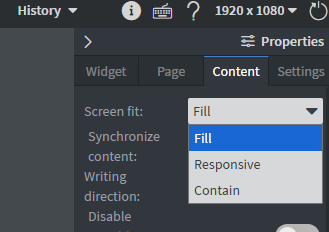
- Fill — the default. The content is resized to the exact width and height of the screen, so its original aspect ratio is not kept.
- Responsive — the page itself is resized to the available width and height, and the position and size of every widget is recalculated. Each axis follows the available area on its own, so the authored aspect ratio is not kept. This gives a custom app a container at the screen's own resolution to lay itself out in.
- Contain — the whole page is scaled up or down while keeping its aspect ratio, and centered. When the ratios differ, empty bars are left on two sides.
Other settings are also called a kind of fit, and they size a single file rather than a whole page. Learn more: Fit settings.
A content saved with the retired Letterbox or Overflow option keeps rendering exactly as it did. The option stays listed for that content but is disabled, so it cannot be selected again.
A Contents widget playing this content with Performance Mode enabled can override this setting for everything it plays, or leave it on Inherit to keep each item's own choice. Learn more: Screen fit for embedded content.
Synchronize content
 | Disabled by default. The Synchronize Content function allows you to display a content synchronously on multiple screens. ⓘ Learn more |
|---|---|
| You can turn on Synchronize content in the Content menu under Properties. |
Writing direction
 | Here you can manipulate the writing direction inside your content. You an choose between Left to right or Right to left. |
|---|
Databinding
Base Data path
 | In the Data binding menu, you can connect a datasource to your content. |
|---|
Datasource mappers
 | It makes easy to manipulate the data itself inside of any datasource before it goes to the widgets. |
|---|
Click Edit datasource mappers to open the rule editor. A mapper runs a small JavaScript function over a Datasource before its data reaches the Widgets, and writes the result to a path you can bind to — either one you write yourself, or one of the calendar and CAP presets.
Learn more: Datasource mappers
Comment
- In the Comment Menu, you can leave a comment and you can see who saved the content last time.
External Events
- You can set sensor and datasource events in the External events menu. The content will react to event values or send out an event value to a sensor.

| ⓘ Click here to learn more |
|---|
Content Script
 | You can use your own JavaScript code that runs after a content is loaded if no user is logged in with that screen. |
|---|
Dynamic pages
 |
|---|
- You can turn on Return to default function.
- The content will return to the default page if nobody interacted with the screen in the delayed time.
- You can also turn on Reset user inputs to reset interaction widgets when the content returns to default page.
- You can set a Screen saver for the content. If no one has interacted with the screen in the delayed time, the content will switch to the Screen saver page.
- These functions will only work if you have only one page in the Playlist of the content