AI Filter Generator
The AI Filter Generator adds an AI entry point to the detailed filter sidebar. Instead of building filter rules one by one, you describe what you want to filter for in plain language, and the system translates the description into filter criteria that you can review before applying.
It produces the same kind of filter criteria as the manual editor, but it understands a narrower set of properties on each list. Learn more: What each list can filter on below.
Where it appears
The AI button sits at the top of the filter sidebar, next to the close button.
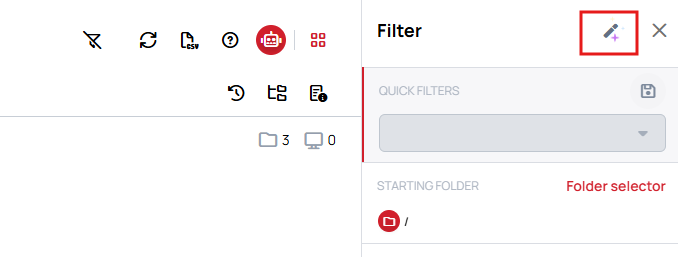
It is available in the lists that use the detailed filter sidebar:
- Devices
- Contents
- Files
- Proof of Play, with its own behavior — see Proof of Play below.
The filter sidebar on the server administrator pages has no AI button.
To open it, click the filter icon in the top right corner to open the filter sidebar, then click the AI button at the top of it.
Whether the AI button is shown can be controlled per user interface profile with the See AI filter generation setting.
Learn more: User Interface Profiles
How to use
- Open the list you want to filter and open the filter sidebar.
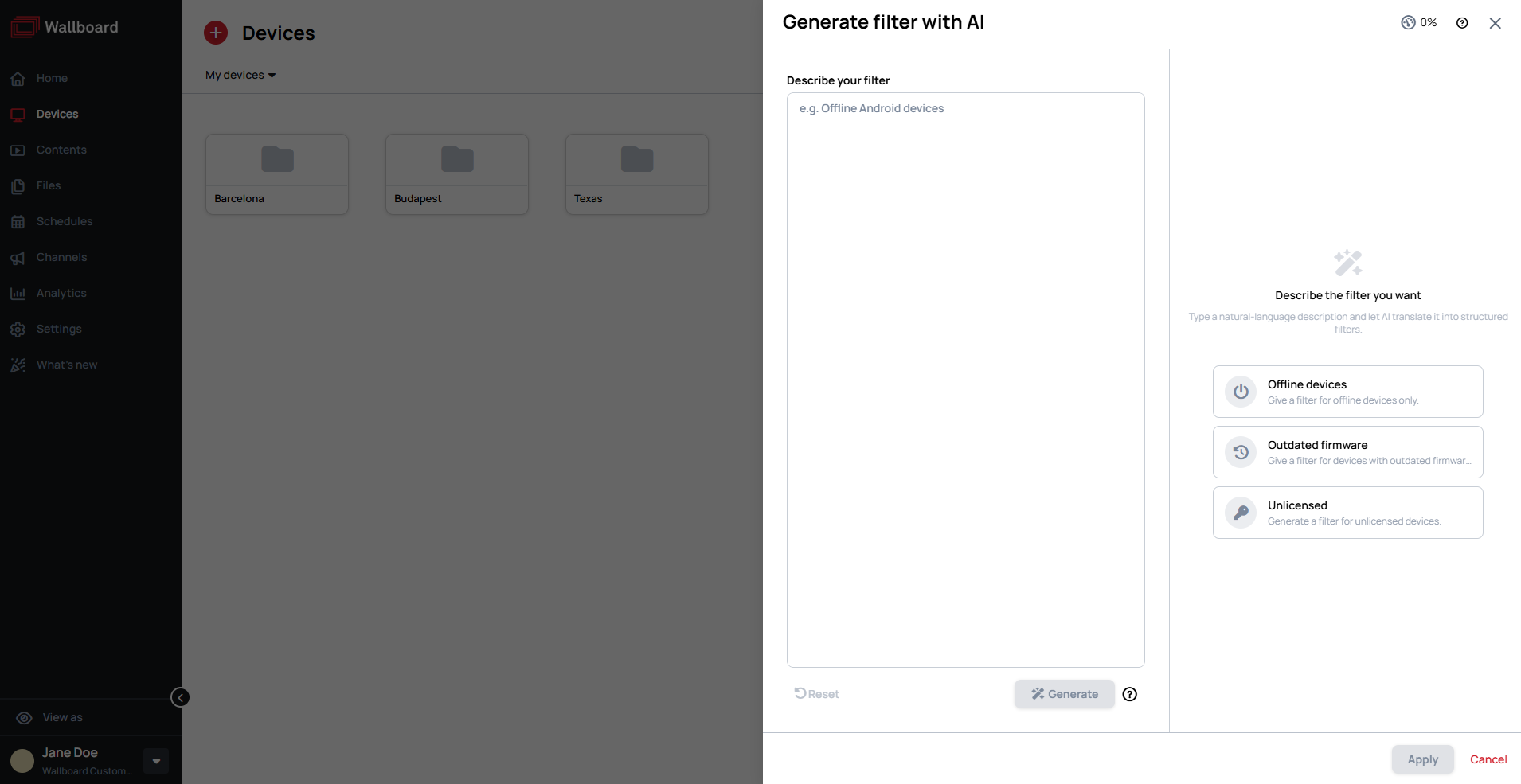
- Click the AI button. The Generate filter with AI panel opens on Describe the filter you want.
- Type your description into the Describe your filter field.
- Click Generate, or press Ctrl/Cmd + Enter.
- Review the preview of what the prompt produced. Re-generate discards it and runs the prompt again, and Reset clears the prompt and the generated result.
- Click Apply. The suggested filter is applied to the list straight away and shown in the filter sidebar, where you can edit it.

Example prompts
The panel suggests example prompts for the list you are filtering. These are the examples the product itself offers:
| List | Example prompts |
|---|---|
| Devices | Offline Android devices · Outdated Samsung devices · Online players in portrait orientation · Unlicensed Windows devices · Devices in emergency mode |
| Contents | Playlists wider than 1920 pixels · Contents named 'summer' · Content taller than 1080 pixels · Playlists named 'lobby' · Slides 1080 pixels wide |
| Files | Large video files · Images wider than 1920 pixels · PDF files named 'menu' · Audio files over 10 MB · Images named 'logo' |
Alongside the prompt field the panel also offers ready-made suggestions for the current list — on Devices these are Offline devices, Outdated firmware and Unlicensed.
What each list can filter on
| List | Properties a prompt can use |
|---|---|
| Devices | Online or offline status, platform, outdated player app, license status and license type, orientation, emergency mode, whether working hours are set, and text in the name, model, OS version, firmware version or player version |
| Contents | Type (Slide, Playlist or Schedule), name, width and height. Templates cannot be filtered this way. |
| Files | File type (image, video, audio, PDF, text, font or JSON), name, size, width and height |
A property that is not on this list, such as a folder, a tag or a creation date, is not turned into a filter rule.
The Outdated firmware suggestion, and the word outdated in a prompt, find devices whose Wallboard player app is older than the latest released version. It does not check the device's own firmware.
When nothing is recognized
If the description cannot be turned into filter criteria, the preview shows No filter conditions recognised, with the hint to try mentioning a status, platform, type, or name. Rephrasing the prompt with concrete property names and values is usually enough.
Proof of Play
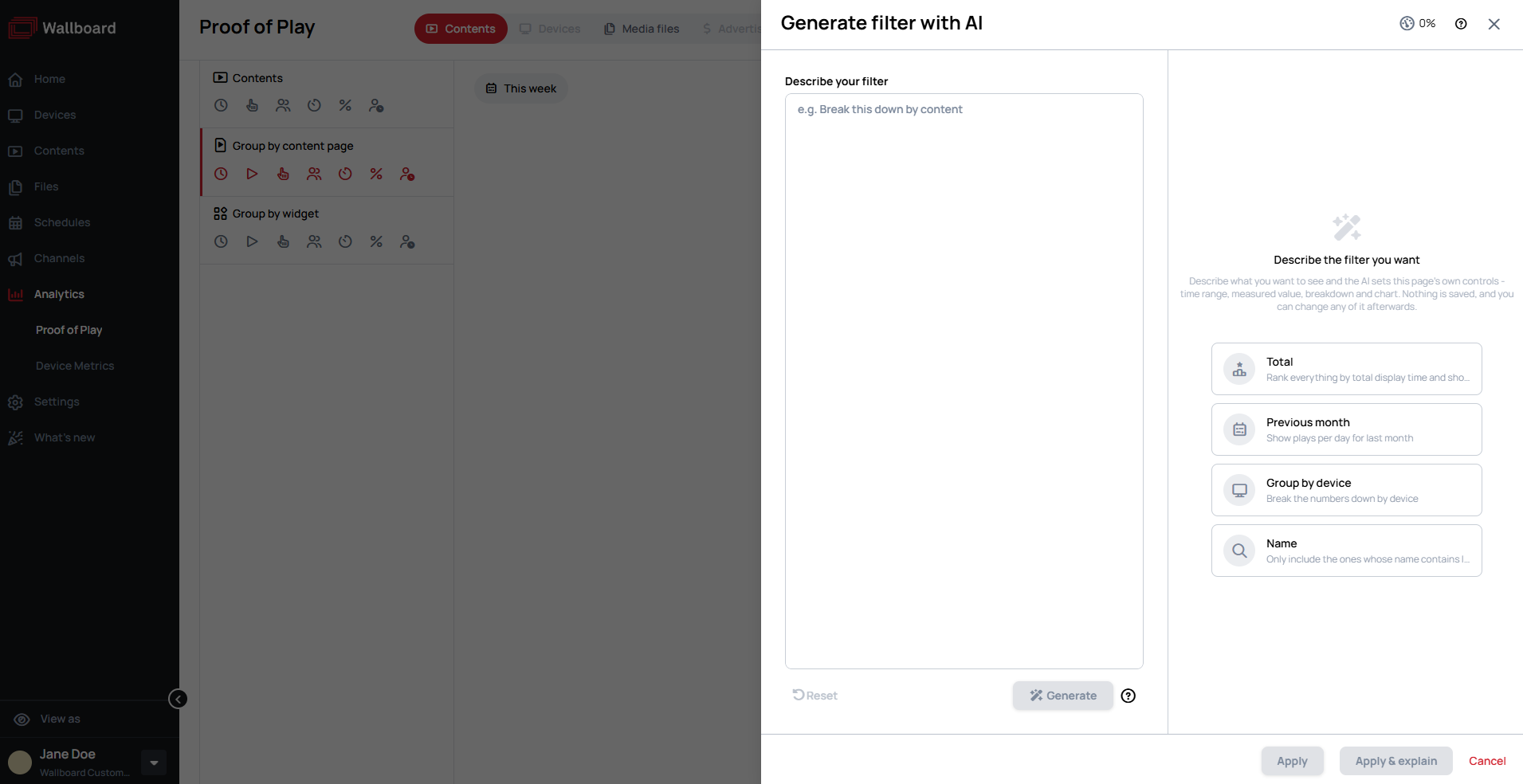
On the Proof of Play page the AI button sits in the page toolbar rather than in a filter sidebar.
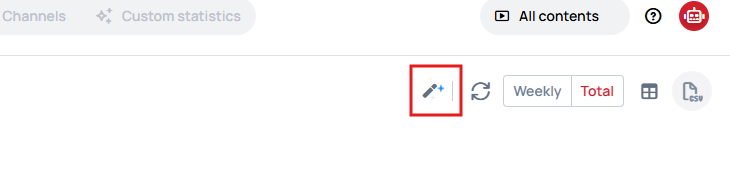
Clicking it opens a menu with two entries:
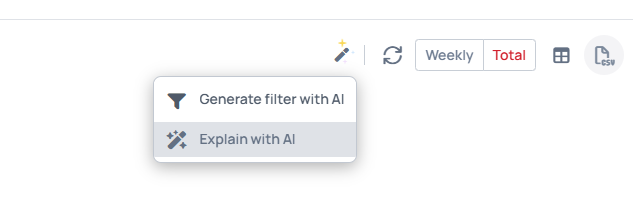
Generate filter with AI works differently here than on the other lists. Rather than building a filter, it sets the page's own controls — time range, measured value, breakdown and chart type.
- The preview is headed This page will be set to, so you can see what will change before anything happens.
- The panel says Nothing is saved. That means no separate filter is created: Apply sets the page's own controls, and you can change any of them afterwards in the normal controls. Like settings you choose by hand, they are remembered, so the report opens with them next time. Reset clears the prompt and the generated result only; it does not change the report or restore its defaults.
- Two apply actions are offered: Apply, and Apply & explain, which sets the page's controls and then explains what the new view shows. Apply & explain is offered only to users who can also see Explain with AI.
- If the page already shows what the prompt produced, the preview says so instead of applying it again.
Example prompts offered here include Plays per day for the last 7 days, Total display time last month, as a table, Break this down by content, Show me the media files instead, and Only the screens whose name contains lobby.

For Explain with AI, what a request can and cannot set, and where the AI works on Proof of Play, see Proof of Play § Use AI with a report.
Editing what the AI generated
The AI fills in the standard filter form, so nothing it produces is locked. Every generated rule can have its value or its operator changed, and rules can be added or removed with the button under ADD FILTER, exactly as if you had built the filter by hand.
Review the suggestion in the AI panel before you click Apply: once applied, the filter is active on the list at once.
What Apply replaces
- Apply replaces the active filter. Whatever filter was active in the sidebar is replaced, not added to.
- On Devices, the other list controls are reset too. Applying a filter clears the search box and sets the platform, status and content-assignment selectors back to showing all devices. This happens whenever a filter is applied from the sidebar, not only with AI.
- Nothing is saved as a Quick Filter. To reuse the filter later, save it as a Quick Filter from the sidebar, as you would a filter built by hand.
Tips for effective prompts
- Name the properties you care about. Status, platform, type, size and name all map onto filter rules; the panel's own hint when it cannot parse a prompt is to mention a status, platform, type or name.
- Combine conditions in one sentence. Each condition becomes its own filter rule, so a single prompt can produce several criteria at once.
- Prefer concrete values. A specific version, size or pixel dimension gives the AI something to map onto a rule; a relative phrase does not.
If a prompt does not produce what you wanted, the Quick Filter editors remain available for building filter criteria by hand.