User Interface Profiles
A User Interface Profile controls which parts of the interface a user sees — menus, tabs, buttons, and actions. Hiding what a user doesn't need keeps their workspace focused on their job. Every user has their own profile; until you change it, all of its permissions are set to inherit, so the user simply sees whatever the levels above them allow.
You shape a profile in two ways: set permissions directly on a user, or assign a reusable preset. For the complete list of individual rules — every element you can show or hide, with the default for each role — see UI Profile rules.
Keep these apart — they answer different questions:
- UI Profiles (this page) control visibility — what a user sees.
- Roles are the security boundary — what a user can do. A profile never grants access beyond the user's role; hiding something is not the same as blocking it. Learn more: User Roles.
- Teams control resource scope — which resources (devices, content, folders) a user can reach. Learn more: Teams.
- The customer's package (Essential / Business / Enterprise) determines which features exist for that customer at all. Learn more: Packages.
Permission States
Every rule is in one of three states:
- Inherit — the default. The rule takes its value from the next level up in the hierarchy, which avoids configuring the same thing repeatedly.
- Show — explicitly makes the element visible, overriding an inherited or lower-level
hide(unless the user's role blocks it). - Hide — explicitly hides the element. This is the strongest state: once set to
hide, no lower level can override it.- Hiding a See permission on a menu or folder also hides everything inside it.
- If every item under a menu is hidden, the menu itself disappears.
If a user's role can't access a feature, that permission is forced to hide and can't be set to show, whatever the profile says — even if it was left on inherit.
The Profile Hierarchy
A rule's final value resolves through five layers. Each layer overrides the one before it, and anything left as inherit takes whatever the layer above decided — so the further down this list, the more specific and powerful the setting:
System-level → Server-wide → Customer → Preset → User
System-level UI Profile
The server-wide baseline that applies to every customer as a starting point.
- Set it at Administrator menu > System settings > Customer settings → Edit default user interface profile (super administrator only).
- By default all of its permissions are
inherit.
Server-wide UI Profile
A reusable profile that standardizes the interface across the server without rebuilding it for each customer.
- Managed from the Server-wide UI profiles tab in the Customers menu (super administrator only).
- Assigned to specific customers or network members as their base layer — they select an existing profile; only a super administrator creates the named profiles.
Customer-Level
The baseline for everyone in a single customer's portal. Use it to hide elements across the whole workspace; presets and individual users can still override it below.
Set it in two ways:
- The customer's own administrator, from Preferences > Other settings > User interface profiles.
- A super administrator or network owner, from the customer's Edit user interface profile for customer action in the Customers menu.
In the profile editor you can also:
- Pick a server-wide profile as the customer's base layer — you select an existing one (creating named server-wide profiles is super-admin only).
- Export or import the customer-level profile as a
.jsonfile, the same as a preset.
A network member is itself a customer in your network, so a member's whole workspace is shaped by its customer-level profile. As a network owner, set it from the member's Edit user interface profile for customer action in the Customers menu. Learn more: Customers (Network Members).
User Interface Profile Preset

A reusable, named profile you assign to individual users — useful for giving a group of users the same visibility without configuring each one. A preset is a default; a user's own settings (below) override it.
Add a preset
Create presets on the Settings > Users > User Interface Profiles tab.
Assign a preset
Assign a preset to a user in the create or edit modal, from the User Interface Profiles dropdown.
Export and import a preset
Export a preset to a .json file and import it back — to copy a configuration between users, back it up, or move it between Wallboard instances. Both controls live on the Settings > Users > User Interface Profiles tab:
- Export — select the preset and choose export to download its
.jsonfile. - Import — choose import, upload the file (drag & drop or browse), give it a name, optionally add a comment, and confirm.
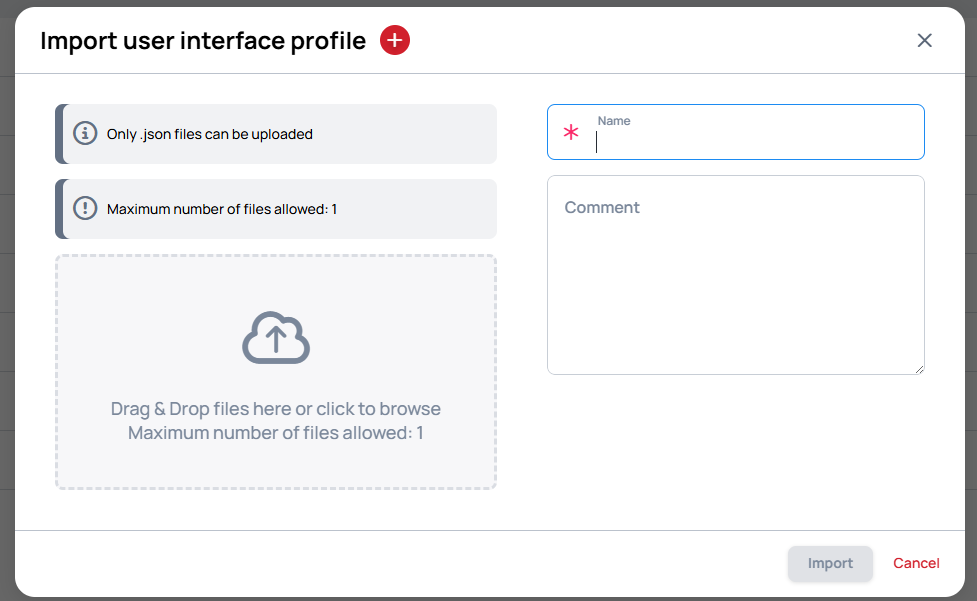
Importing a file overrides all current permission rules in that profile with the ones from the file.
User-Level (Strongest)

The settings on an individual user — the final word. A permission set to hide here can't be overridden by any preset, customer, or server-level profile.
Edit a user's own profile from Settings > Users: open the user's actions and choose Edit user interface profile, which opens the User Interface Profile editor for that user. (Assigning a preset in the user's create or edit modal, above, is the quicker way to apply a ready-made set of rules.)
As a network owner, you can also edit the user-level profile of an individual user inside one of your members — the same Edit user interface profile action described above, opened from that member's users.
Regional Format Defaults
Beyond visibility, a UI Profile preset can also carry default regional format values — date format, number format, clock, temperature unit, and similar. These follow the same hierarchy as permissions, but a user's own regional-format settings always win: the preset only provides a fallback when the user hasn't set their own.
Where users set their personal regional format: Regional format in profile.