Microsoft cloud services
This article describes how to integrate with Microsoft (using its API) and use the received data in multiple ways in Wallboard.
Wallboard provides two ways to access data from the Microsoft ecosystem:
- Delegated access, an app acting on behalf of a signed-in user.
- App-only access, an app acting with its own identity.
- Also called: Service Principal / Service Account
Access data on behalf of a signed-in user
Wallboard can only access data that the connected user has access to.
Access user's personal data
- Add new
Microsoft credential - Select the scope
- Set the tenant type to
Personal Account - Click on
Authenticate - Follow the steps in the pop-up
Access SharePoint resources (user is part of a corporate tenant)
- Add new
Microsoft credential - Select the scope
- Set the tenant type to
Work or School Account - Choose
SharePointin the add modal - Click on
Authenticate - Follow the steps in the pop-up
Connecting a SharePoint account requires admin consent!
The actual setup flow can be different based on your configuration at Azure.
Requested permissions
With delegated access you do not add permissions to an app registration — Wallboard requests the scopes it needs when the user signs in, and the user (or a tenant admin) consents to them. The lists below are what the consent prompt asks for, so you can review them in advance, or decide whether to grant admin consent on behalf of your users.
Every set also includes offline_access and openid.
Personal Account
| What you are connecting | Scopes | Admin consent |
|---|---|---|
| Drive (folder sync) | User.Read, Files.Read.All | No |
| Calendar | User.Read, Calendars.ReadWrite | No |
| Excel workbook | Files.Read.All | No |
| Teams | Chat.Read | No |
| Power BI | Report.Read.All, Dataset.Read.All, Workspace.Read.All, Dashboard.Read.All | Power BI tenant settings apply |
Work or School Account
| What you are connecting | Scopes | Admin consent |
|---|---|---|
| Drive (folder sync) | Group.Read.All, Sites.Read.All, Files.Read.All | Yes — for Group.Read.All |
| Calendar | Group.Read.All, Sites.Read.All, Calendars.ReadWrite.Shared | Yes — for Group.Read.All |
| SharePoint Lists | Sites.Read.All, Files.Read.All | No |
| SharePoint News | Sites.Read.All, Group.Read.All, Files.Read.All | Yes — for Group.Read.All |
| Excel workbook | Sites.Read.All, Files.Read.All | No |
| Teams | Chat.Read | No |
| Active Directory users | User.Read.All, Presence.Read.All | Yes — for User.Read.All |
| Power BI | Report.Read.All, Dataset.Read.All, Workspace.Read.All, Dashboard.Read.All | Power BI tenant settings apply |
The Power BI scopes belong to the Power BI API (analysis.windows.net), not to
Microsoft Graph.
The Admin consent column is what Microsoft requires by default. Many tenants switch user consent off entirely, and there every scope needs an administrator to approve it regardless of what the column says. A "No" therefore means your users can consent themselves if your tenant allows them to, not that an administrator is never involved.
Access data as a Service Principal (Service Account)
Wallboard gives the option to use service principals (app-only access) besides the on behalf of a signed-in user (delegated) method to access data.
Service principals
Register an App in Azure AD
To have a Client ID and Client Secret first you have to create an application registration in Azure AD.
Navigate to App Registrations
Click on New Registration
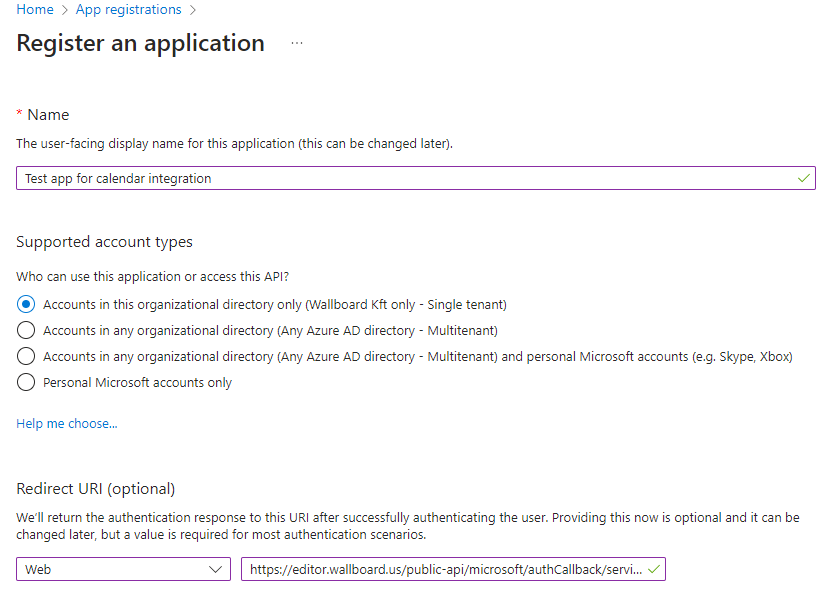
The redirect URI must point to the actual Wallboard server (replace [server_domain]).
https://[server_domain]/public-api/microsoft/authCallback/serviceAccount
Setup permissions
Add the necessary permissions (scopes) to the application:
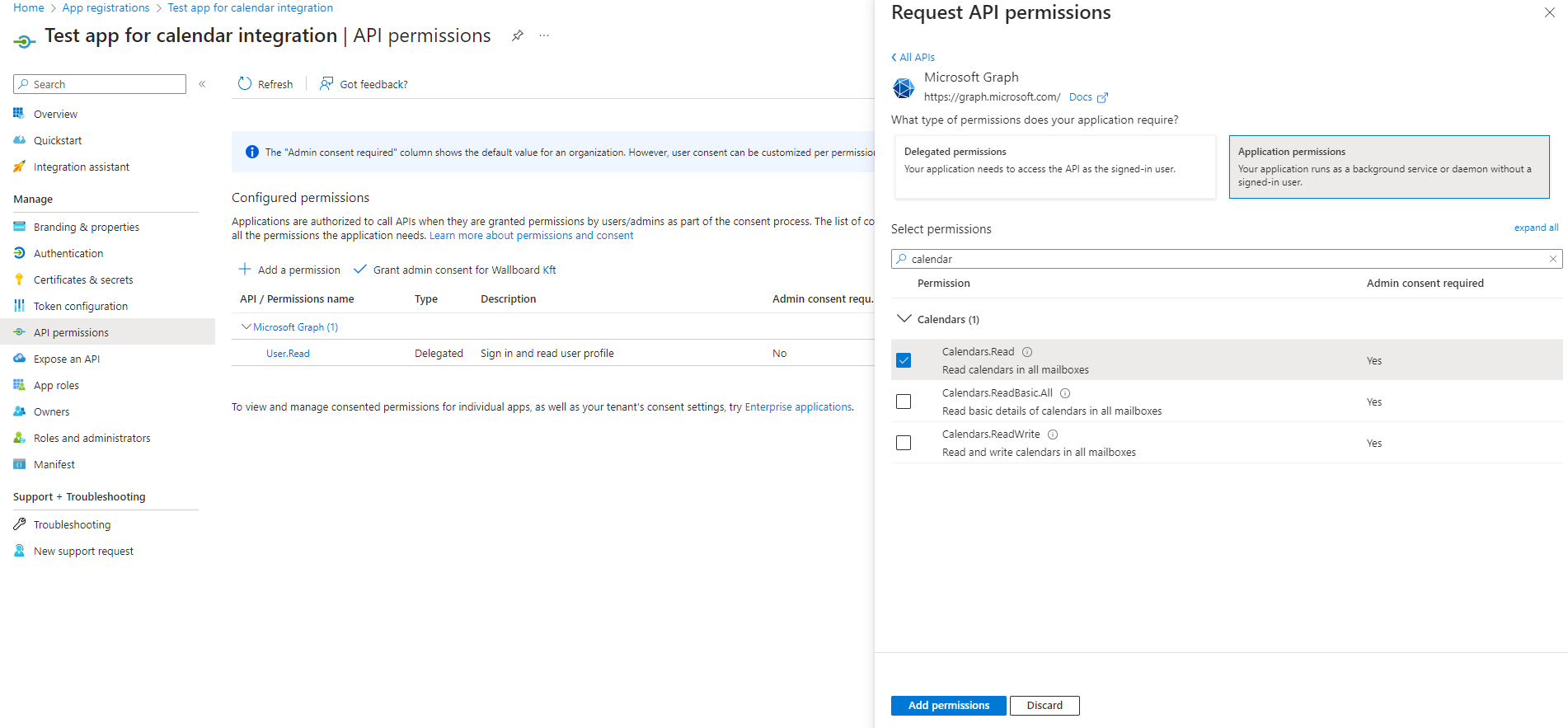
The following permissions are required in the different use cases:
Every application permission requires admin consent — app-only access has no user-consent path at all.
| What you are connecting | Permissions | Admin consent |
|---|---|---|
| Calendar, read-only (as a datasource) | Calendars.Read | Yes |
| Calendar with event editing (needed for meeting room solutions) | Calendars.ReadWrite | Yes |
| Drive (folder sync, from a user's or a site's drive) | Sites.Read.All, Files.Read.All | Yes |
| SharePoint Lists (as a datasource) | Sites.Read.All, Files.Read.All | Yes |
| Excel workbook (as a datasource) | Sites.Read.All, Files.Read.All | Yes |
| Power BI | No specific permission required — see below | Power BI tenant settings apply |
In order to access a Power BI workspace with a service principal you need to
- Enable
Allow service principals to use Power BI APIsSettings->Admin portal->Developer settings
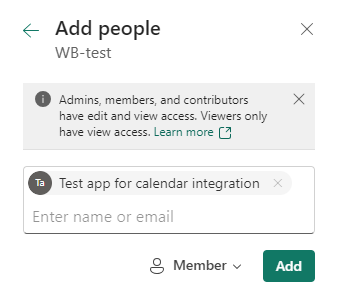
- Add the service principal to your workspace with
Memberrole (use theDisplay nameof the created application)Select workspace->Manage access->Add people and group
To allow embedding in a content:
- Enable
Embed content in appsSettings->Admin portal->Developer settings
Add a new client secret
At Certificates & secrets create a new client secret and copy the Value (not the Secret ID).
You will need this secret in a later step, referred to as Client Secret.
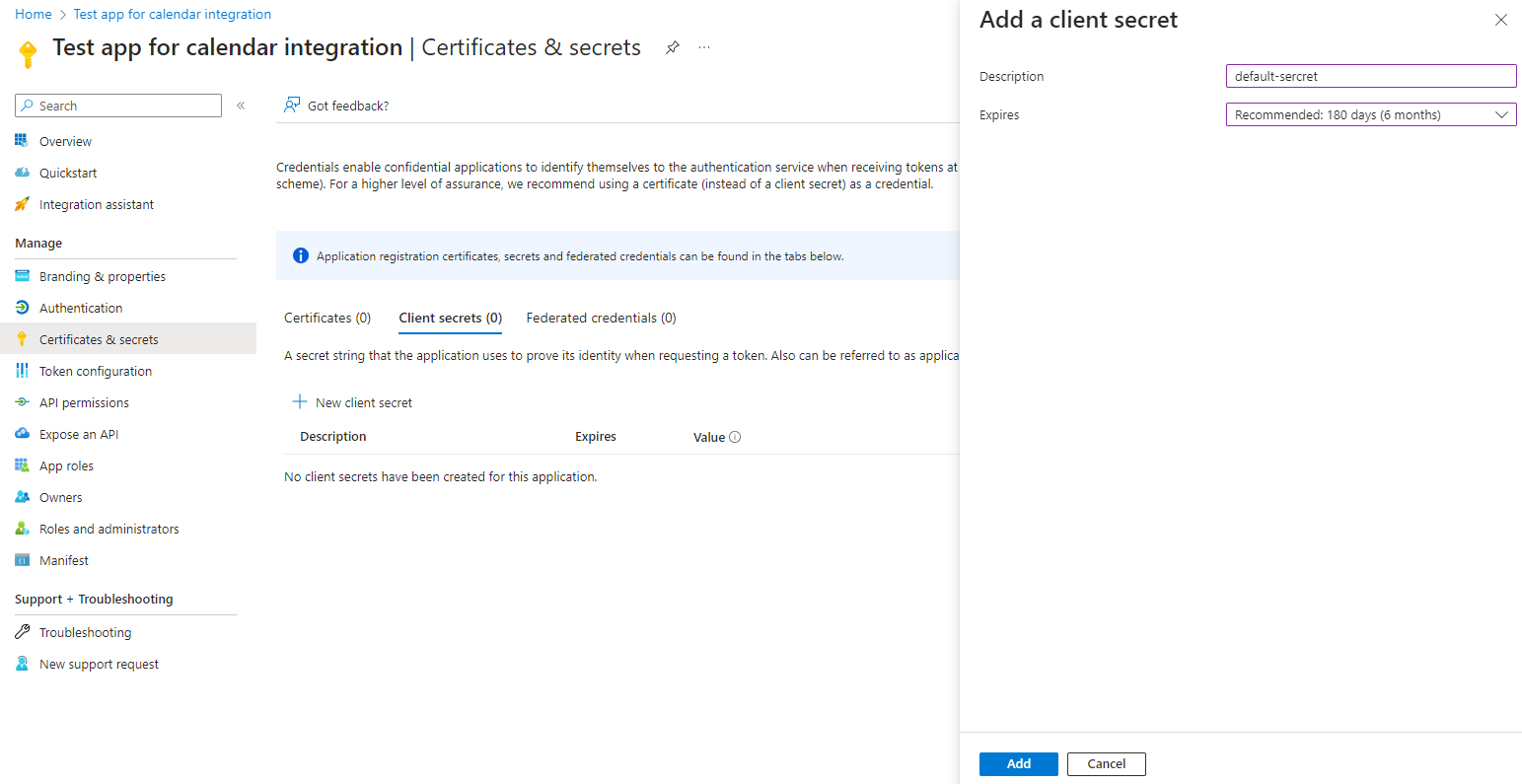
Check the secret expiration, because after that Wallboard won't be able to request new tokens and the integration will be broken.
On expiration there is an option in Wallboard to update the secret on the credential.
Grant admin consent
Using certain permissions requires admin consent. There is an indicator for it in the Admin consent required column.
In order to grant admin consent click on the Grant admin consent for [My Company name] button at the API permissions menu.

In case of service principals, grant admin consent through the Azure AD console as detailed above.
Granting admin consent during the browser sign-in flow instead can result in a token that is missing the required scopes, so we highly recommend granting admin consent to the application before configuring anything in Wallboard.
Set up connection in Wallboard
- Add new
Microsoft credential - Select the scope
- Set the tenant type to
Service Principal - Fill
Client IDandClient Secret - Click on
Authenticate - Follow the steps in the pop-up
Related articles
- Microsoft credentials — creating and managing Microsoft credentials in the Cloud Credentials menu
- Calendar credentials — connecting a calendar as a datasource
- Microsoft Excel datasource
- SharePoint Lists datasource
- Power BI datasource
- Connect Microsoft OneDrive folder