Google credentials
In the Cloud Credentials menu, you can create and manage Google credentials.
Additionally, you can:
- Add data sources
- Integrate calendars
- Sync folders from Google Drive into files
This function only works if Google API is set on your server.
Create credential
- Navigate to Settings > Cloud Credentials, then select Google tab.
- Click on the button next to the Cloud Credentials header.
- Select
Add Google credentialoption
As a scope, you can select:

- Calendar
- Drive
- Spreadsheet
In the appearing modal, you must set the Name of the new credential.
- In the add modal of calendar type credential you can enable
Access attached filesto be able to get the attachment files to the datasource. - After that, Click on the Sign in with Google button to authenticate your credential.
Actions on Google credentials
Authenticate credential
If the authentication fails or becomes detached from the authenticator email, you have to authenticate the credential.
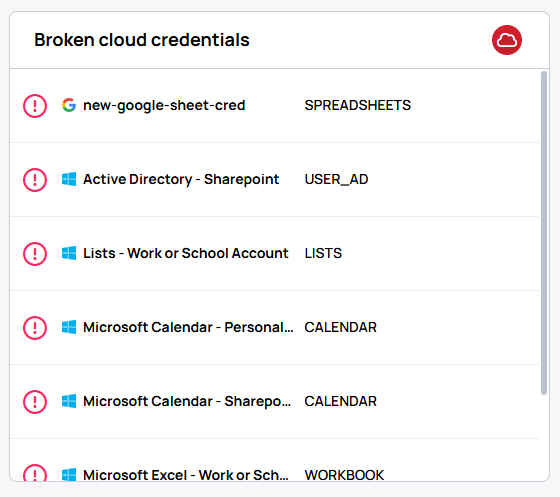
- The red cloud icon will indicate the broken credentials in the Credential list.
- Also, you can see the broken cloud credential list on the Home screen and Settings overview
Reauthenticate Credential
If you want your credential to be re-authenticated with another user, you can do it with the re-authenticate button.

Please note, this action might break your already existing connections!
Edit Google credential
-
You can manage the team's access for devices:
- Rename the credential.
- Select a manager user to manage the access list.
- Select teams to access the credential.
- If the Calendar scope is selected, you will see a
Read onlyswitch, which determines whether the credential is allowed to modify calendar content (disabled by default).
-
Remove credential: With this button, you can remove your credential.
-
Remove credential: With this button, you can remove your credential.