Supported formats in the Files menu
Accepted file extensions
The Files menu accepts the following file extensions when you add a file:
| File type | Extensions |
|---|---|
| Images | .jpg, .jpeg, .png, .gif, .bmp, .svg, .ico, .webp, .cur |
| Videos | .mp4, .webm |
| Audio | .mp3, .wav, .ogg |
| Fonts | .otf, .ttf, .woff, .woff2 |
| Documents and data | .pdf, .json |
| HTML | .html, .htm |
Audio, font, PDF, JSON, and HTML uploads may be unavailable depending on your account's permissions and enabled file types.
An uploaded HTML file must be self-contained: inline its CSS and JavaScript, and do not rely on calling an external API at runtime. If the page references images, upload those images to the Files menu first, then edit the HTML to point at their Wallboard-hosted URLs before uploading it — a local or relative image path will not resolve once the file is uploaded.
An accepted upload format does not guarantee playback on every device. Playback also depends on the device platform and its browser or player version. Check the relevant player documentation when choosing a format for your screens.
Convert a video to WebM (VP9)
If a video does not play or stutters on a device, the codec inside the file is usually the cause. This happens most often with 4K and portrait 4K videos on Android. Converting the video to WebM with the VP9 codec solves this in most cases.
You can convert videos with HandBrake, a free, open-source video converter: Download HandBrake
-
Open your video in HandBrake.
-
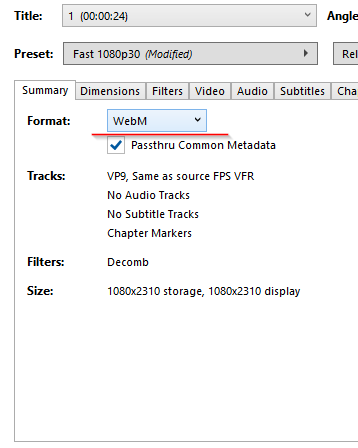
On the Summary tab, set Format to WebM.
-
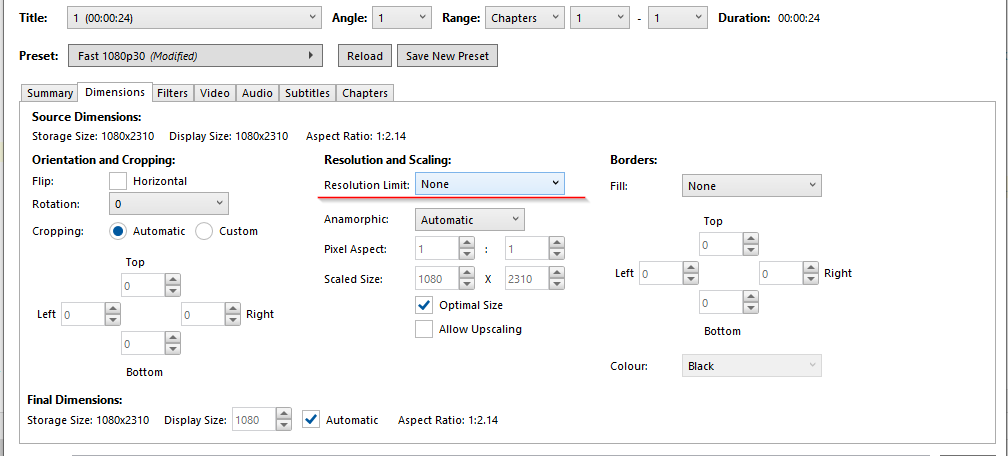
On the Dimensions tab, under Resolution and Scaling, set Resolution Limit to None, so the video keeps its original resolution.
-
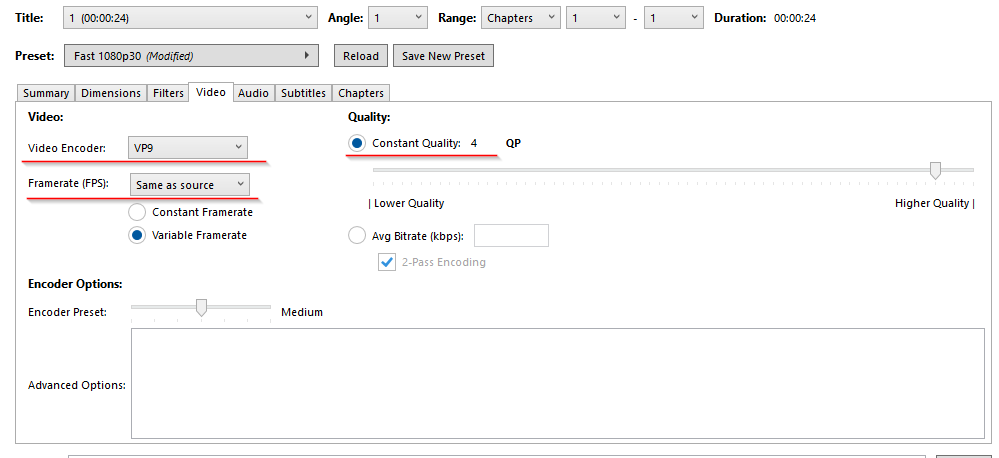
On the Video tab, set:
- Video Encoder: VP9
- Framerate (FPS): Same as source
- Quality: Constant Quality
4. The lower the number, the better the quality.
-
Start the conversion, then upload the new
.webmfile to the Files menu.