Playlist Page Settings
- This article covers universal playlist page settings available across all page types. For type-specific options, refer to individual page documentation.
- Learn more: Playlist Pages
Page duration
- In
Page durationfield you can enter a duration value to overwrite the default duration. - This feature is not available in ePaper compatible playlists.
- When using a
Continuous slider layout, the item duration will overwrite the page duration.- Learn more: Performance mode
Image fit and Video fit
- The
Image fitandVideo fitoptions refer to how an image or video element is resized or scaled to fit within a given space.- By default, elements use the
Inheritsetting, which applies the playlist'sDefault image fitorDefault video fitconfiguration to the elements. - Learn more: Default fit
- By default, elements use the
- When the applied fit is
Contain, the playlist can fill the empty space around an image with a blurred copy of it instead of leaving it plain.- Learn more: Blur background for contained images
Advertiser
- You can assign advertisers to playlist pages to collect proof of play report.
Playback Mode
To configure the playback mode of an asset:
- Select the page where you wish to set the playback mode
- Click the button to open playlist page settings.
- In the Playlist page settings modal, find the Playback Mode dropdown menu.
- Select one of the following options:
- Default
- Exclusive
- Fallback
Each mode determines how the asset behaves relative to other assets in the playlist.
Managing by playback mode type
You can manage your playlist in Timeline view by playback mode type.

Default Mode
By default, assets rotate sequentially within the playlist. This means:
- All assets will play in order.
- Expired assets (those outside of their scheduling window) are skipped automatically.
- This mode is ideal for general-purpose rotation of content.
Exclusive Mode
Use Exclusive Mode when you need a specific asset to play without interruption or competition from others in the playlist. This is especially useful for:
- Time-sensitive events
- Displaying menu boards for specific times of the day (e.g., lunch, happy hour, dinner, guest welcome screen)
When an asset is set to Exclusive mode, no other assets will play during its scheduled time.
Fallback Mode
Fallback Mode ensures that something always plays, even if all other assets are expired or unscheduled. This is useful when:
- All scheduled assets have ended
- You haven't updated the playlist in time
By setting an asset to Fallback mode, you prevent black screens and ensure continuous display.
Where to play
Where to play decides which screens may play a page. The playlist still goes to all of its screens, but each screen plays only the pages it is eligible for — so one shared playlist can carry pages for every screen alongside pages meant for particular locations. The playlist's schedule and playback modes still apply on top.
Open the page's Playlist page settings and choose one of the two options under Where to play, then Confirm and save the playlist.
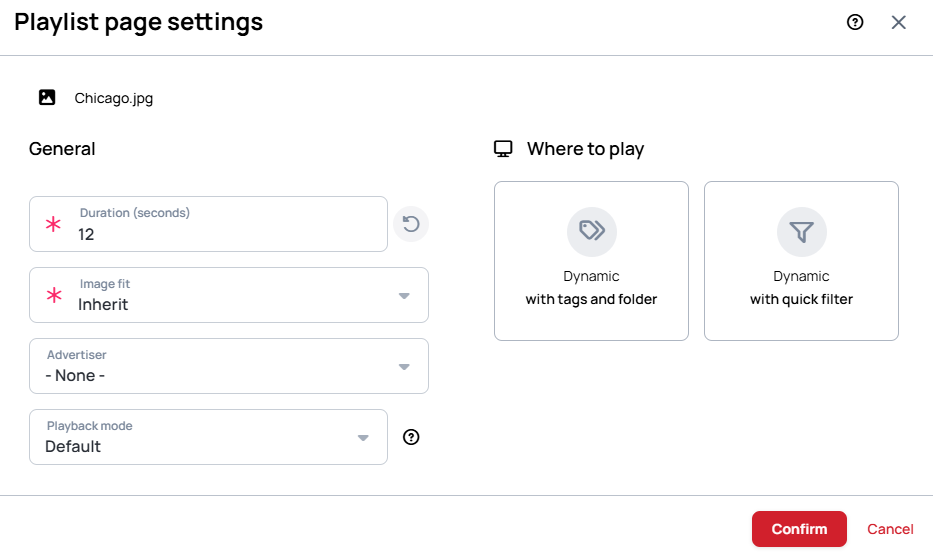
Dynamic with tags and folder
- Device tags — choose one or more tags and a Match type: Any match plays the page on screens that have at least one of the tags, All match only on screens that have every one of them. Capitals don't matter.
- Folder — choose one or more device folders. A screen in a chosen folder, or in any of its subfolders, is eligible; with several folders, any of them will do.
- Both — when you set tags and folders, a screen must be in one of the folders and match the tags.
Dynamic with quick filter
Choose one existing device Quick Filter. The page plays on the screens that filter matches, and follows the filter as its criteria or the screens change.
Good to know
- The settings show which screens match right now. That list is a preview: a screen that later gets the tags, or moves into the folder, picks up the page as well.
- A page without a Where to play rule plays on every screen that gets the playlist.
- Pages set up with device tags before Where to play existed keep that tag rule.
Learn more: Tags Menu, Create Device Folders, Device Assignments - Where to play (the same idea for Channels and Schedules)