Quick Editor Data Bindings
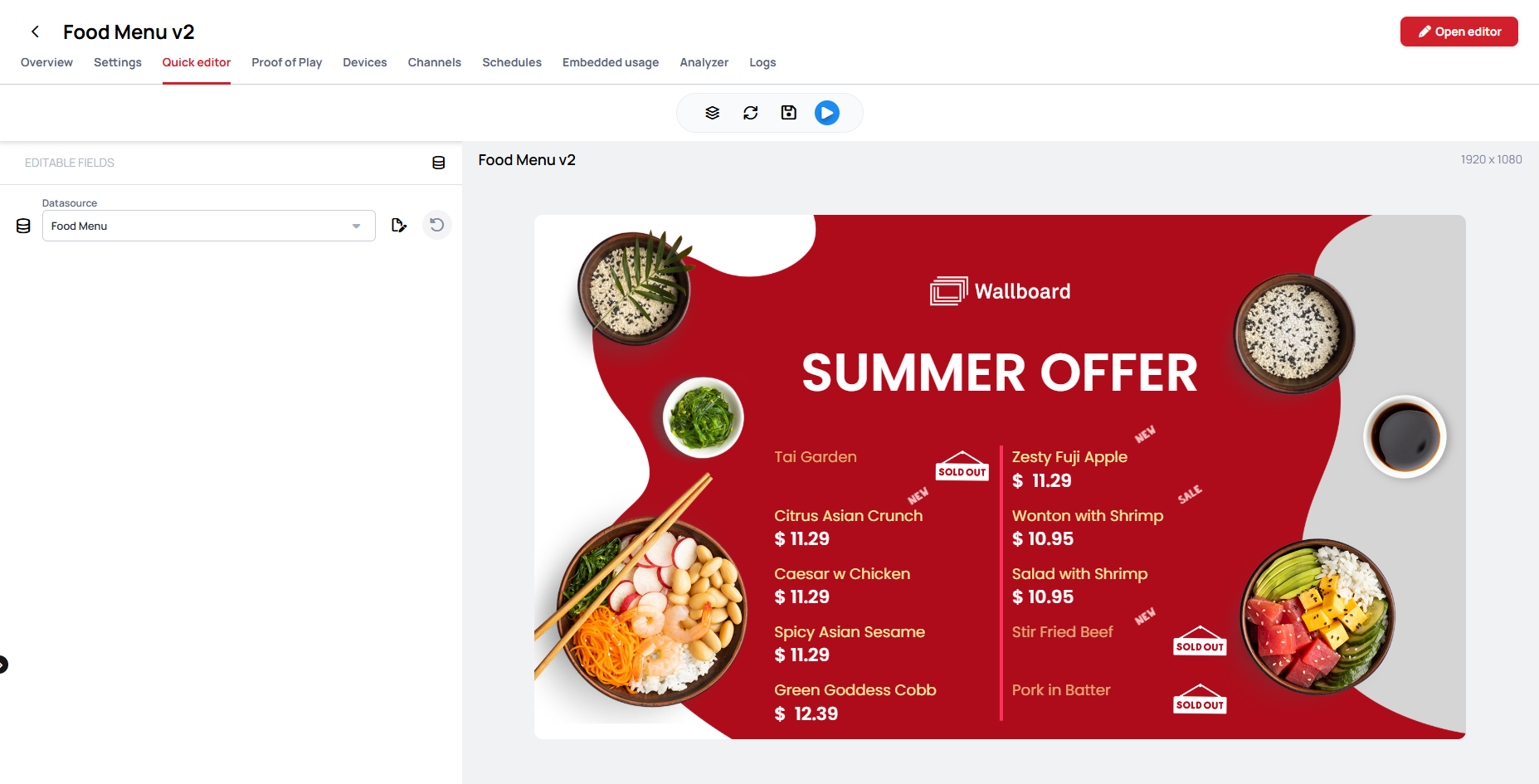
Data bindings lists every datasource a Content or Slide is connected to, and shows where each one is bound. From the same list you can preview the data, and edit a mock datasource or an internal datasource without leaving the Quick Editor. A menu price or an event time can be corrected straight from the content that shows it, without looking up the datasource under Settings first.
Open Data bindings
- Open the Quick Editor: the Quick editor tab of a Content or Slide, or the Quick Editor of a Playlist page.
- In the Editable fields panel header, click the icon, labeled Data bindings on hover.
The icon only appears when the Content uses at least one datasource.
What the list shows
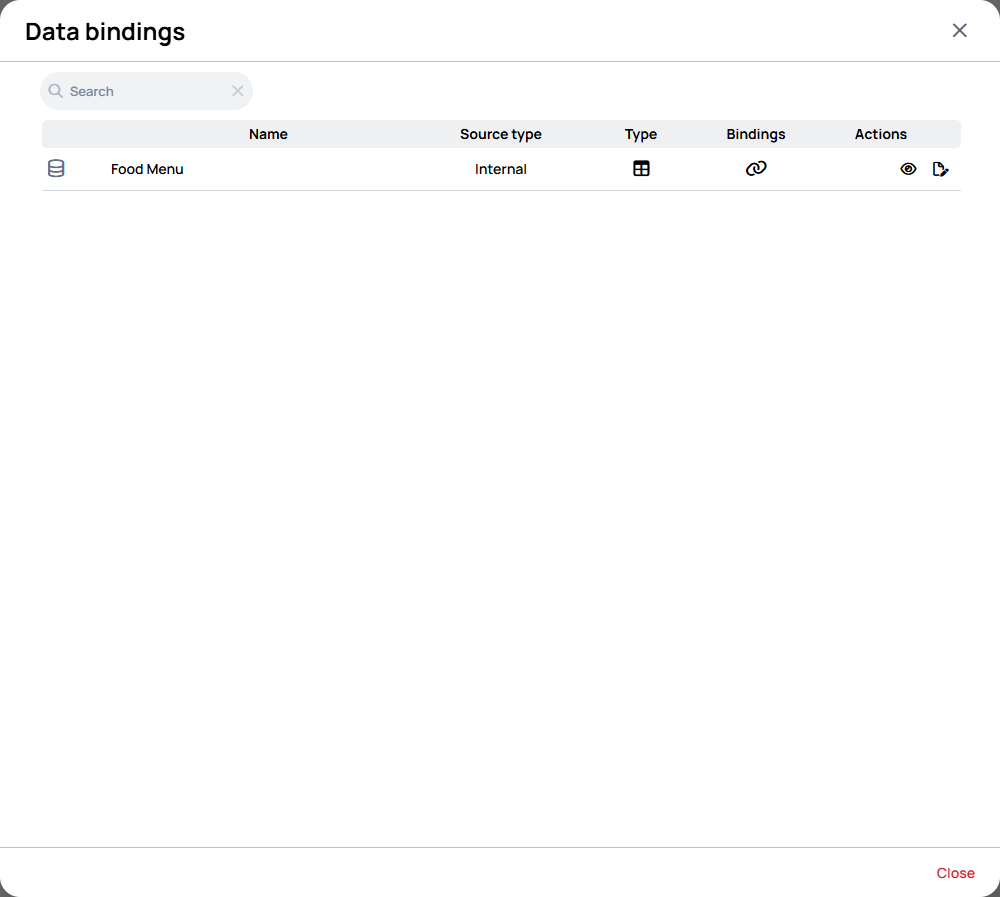
Each row is one datasource the Content uses:
| Column | What it tells you |
|---|---|
| Name | The datasource. The base datasource of the Content is marked with a icon, labeled Base data path on hover. |
| Source type | Mock, Internal, External or System. Not found means the Content refers to a datasource that no longer exists or that you cannot see; its ID is shown in place of a name. |
| Type | An icon for the structure of the data, such as a table or a feed. Hover it to see the name. |
| Bindings | Hover the icon to see every page, Widget and property the datasource is bound to. No connections means nothing uses it. |
| Actions | Preview, Open editor and Reset icons, depending on the datasource. |
A mock datasource you have already changed is marked with a icon, labeled Overridden on hover. Use Search to filter a long list.
Editing a mock datasource
A mock datasource belongs to the Content itself, so editing it only changes this Content, or this Playlist page. It is sample data saved inside the Content, often a single record such as one bird's name, photo and description, that Widgets on a detail page read.
Learn more:
- Mock datasources
- How to make a Bird database, a worked example that uses a mock datasource
- Click the Open editor icon on the mock datasource row.
- Change the data and click Save.
- Save the Content, or click Confirm in the Playlist Quick Editor. Your change is only kept once you do.
To go back to the data the Content was built with, click the Reset icon on the row.
Because the change is stored on the Playlist page, the same Slide can show different mock data on two pages of one Playlist.
Editing an internal datasource
An internal datasource is shared: the same table can feed many Contents and Devices. Editing it here changes it everywhere it is used.
-
Click the Open editor icon on the internal datasource row.
-
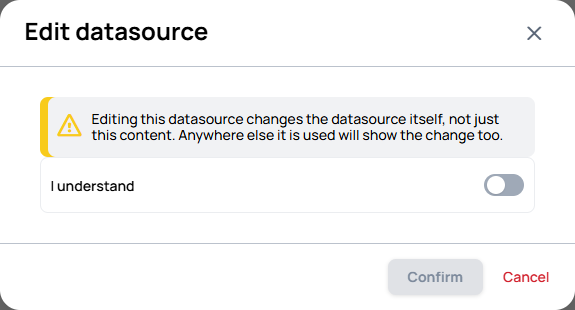
The first time, an Edit datasource window warns: "Editing this datasource changes the datasource itself, not just this content. Anywhere else it is used will show the change too." Turn on I understand, then click Confirm. You are not asked again.
-
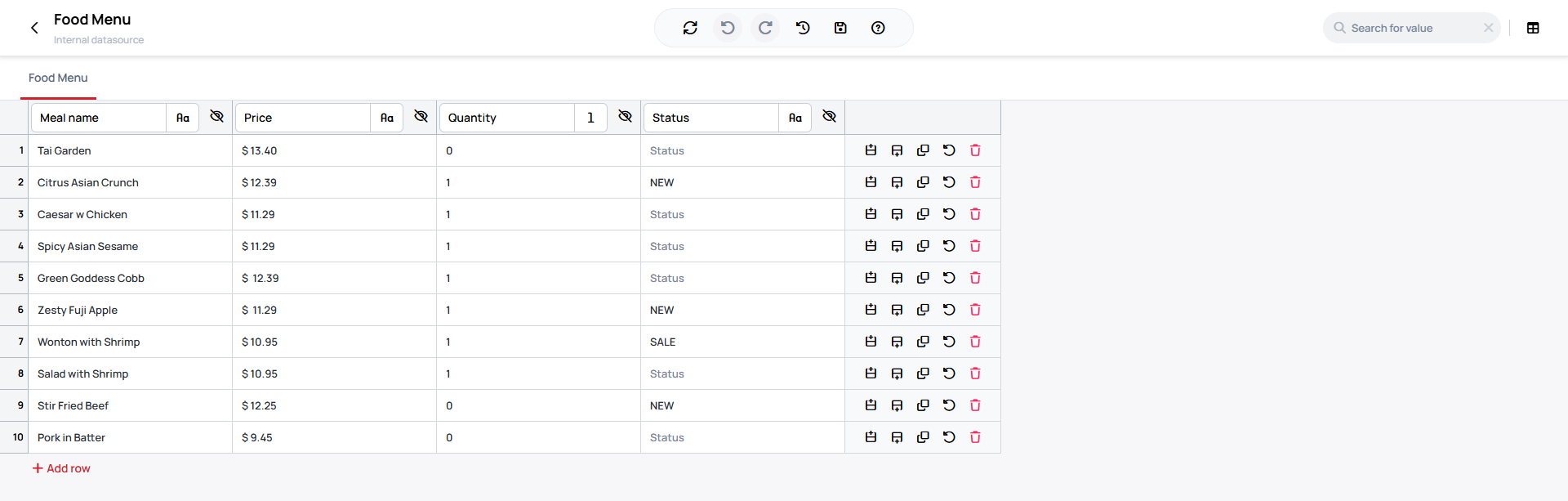
Change the data and click Save in the datasource editor.
Saving an internal datasource writes the change immediately, for every Content that uses it. Cancelling the Quick Editor afterwards, or leaving without saving the Content, does not undo it.
A Table or Variables datasource opens with the structure locked. You can change the data, and add or delete rows, but you cannot rename the datasource, or add, remove or reorder its columns or keys. Those changes are made under Settings > Datasources.
| Internal datasource | How it opens |
|---|---|
| Table | Worksheet view or Card view |
| Variables | Variables view, for editing the values |
| Custom | The JSON editor. A Custom datasource has no fixed structure, so its keys are not locked: if an edit removes or renames a key a Widget reads, the editor warns that the Widget is disconnected, but it does not stop the save. |
Learn more:
External and system datasources can be previewed here, but not edited.
Editing the base datasource
If the base datasource of the Content is quick editable, it has its own Datasource Editor icon in the Editable fields list, next to its Reset icon. It opens the same editor, and the same rules apply: an internal datasource changes everywhere it is used.
The Datasource field itself can also switch the Content to another datasource of the same type.
Widgets find their values by name: the worksheet, the column and the row. If you switch to a datasource whose names do not match, those Widgets go empty, and the Quick Editor lists them under Broken data bindings. Switch back, or click Reset next to the field, to restore the Content. Not every binding is checked, so an empty warning does not guarantee that nothing broke.
Learn more: Switching the base datasource in the Quick Editor
Learn more: Quick Editable Base Datasource
Who can preview and edit
| Action | Needed |
|---|---|
| Preview a mock datasource | Access to the Quick Editor |
| Preview any other datasource | Permission to see datasources |
| Edit a mock datasource | A user who is not read-only |
| Edit an internal datasource | Permission to manage datasources, a user who is not read-only, and a datasource that is not read-only |
The User Interface Profile of the user can also hide the internal datasource editor. In that case Open editor does not appear.
Refreshing the preview
The Refresh icon reloads the Quick Editor from the saved Content. It discards every unsaved change, including mock datasource edits, so save first. After you save an internal datasource, the preview updates on its own.