Mock datasources
A mock datasource is data saved inside a Content or Slide itself. Widgets bind to it like to any other datasource, but it lives with the design rather than under Settings > Datasources.
That makes it useful in four situations:
- Sample data while designing. Build and preview a data-bound design before the real datasource exists.
- Data that belongs to the design. Values that only this Content needs, such as the text on one promotion, stay with it.
- Different data on each Playlist page. When a Slide is quick edited in a Playlist, its mock data is stored on that Playlist page, so the same Slide can show different values on different pages.
- A temporary holder on the screen. Actions can load data into a mock while the Content plays, for example the row a visitor tapped, and Widgets bound to the mock show it. The real datasource is never touched.
Mock or a real datasource?
| Mock datasource | Internal or external datasource | |
|---|---|---|
| Lives | Inside the Content or Slide | Under Settings > Datasources |
| Shared with other Contents | No | Yes: every Content that binds to it shows the same data |
| Edited from a Playlist page | The change belongs to that page only, and can be reset | The change applies to the datasource itself, everywhere it is used |
Create a mock datasource
- Open the Content or Slide in the Content editor.
- In Properties > Content, find the Data binding section and click Mock datasources.
- In the Mock datasources window, click Add.
- Enter a Name, and select the Structure type: Custom, Table or Variables.
- Click Confirm and open editor to fill in the data straight away, or Confirm to fill it in later.
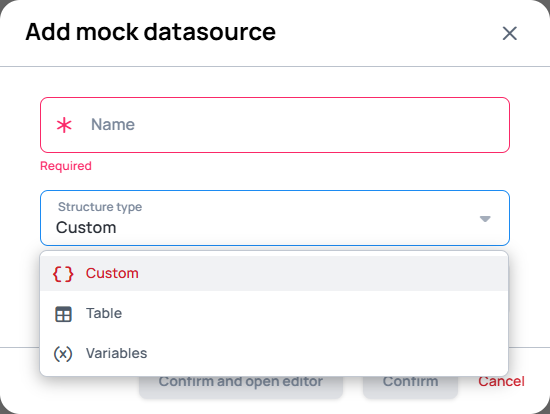
The structure type can only be set when the mock datasource is added. Editing it later changes its name and settings, not its type.
Which structure type?
| Structure type | Holds | Good for |
|---|---|---|
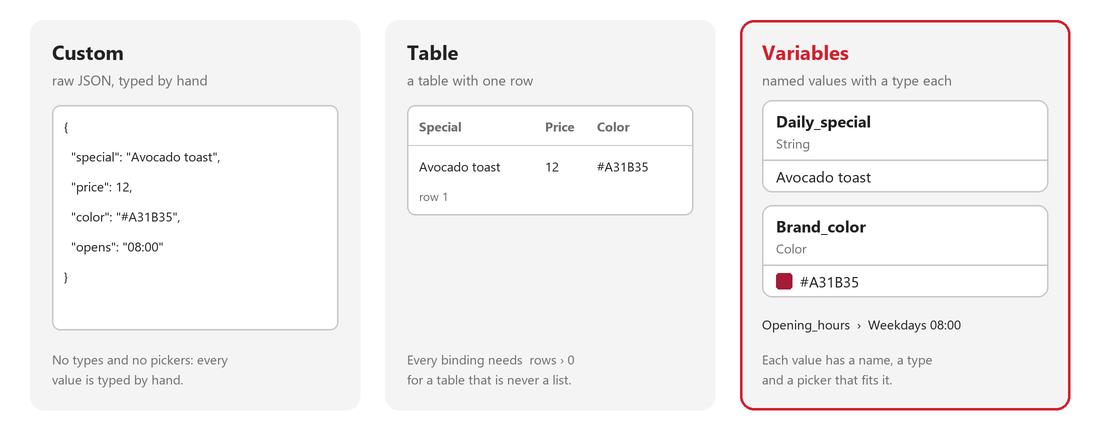
| Custom | Any JSON, typed by hand | A shape that no other type fits |
| Table | Rows and columns | A list of similar items, such as dishes or rooms |
| Variables | Named values, each with its own type, which can be grouped | A single record of settings, such as a special, a price and a color |
Before the Variables type, a single record had to be either hand-typed JSON in a Custom mock, or a Table mock with one row that every binding addressed as row 1. A Variables mock gives each value its own name, type and picker.
Learn more: Internal Variables Datasources
Manage mock datasources
The Mock datasources window lists the mock datasources of the Content with their Name and Type. Each row has these icons under Actions:
| Icon | Action |
|---|---|
| Preview | Shows the data |
| Open editor | Opens the data in the datasource editor |
| Duplicate | Adds a copy |
| Edit | Changes the name and settings |
| Remove | Deletes the mock datasource |
Bind Widgets to a mock datasource
Bind a Widget the same way as to any datasource: in the data picker, select the mock datasource by its name.
Learn more: Databinding
Load data into a mock with actions
A mock datasource can also be changed while the Content plays, on the screen itself. The Change datasource action writes into a mock: it can overwrite the whole mock, overwrite one property of it, or merge new data into it. Nothing is saved to a datasource; the change only happens on that screen.
The typical pattern is a list and a detail page:
- A Table Widget lists the rows of a real datasource, for example one row per bird.
- When a visitor taps a row, a touch action loads that row into a mock datasource with Change datasource, and jumps to the detail page.
- The Widgets on the detail page are bound to the mock, so they show the row that was tapped.
The detail page is designed once, against the mock, and shows whichever row was loaded into it.
Learn more, with a complete example: How to make a Bird database
Different data on each Playlist page
When the Slide is added to a Playlist, each Playlist page can have its own version of the mock data, while the Slide's own data stays the default:
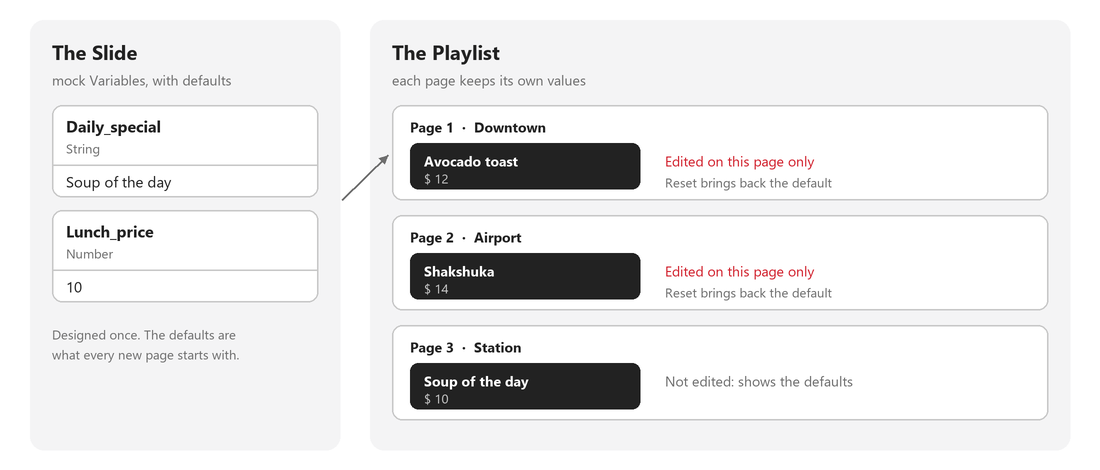
- Open the Quick Editor of the Playlist page.
- Click the Data bindings icon, then the Open editor icon on the mock datasource row.
- Change the data, click Save, then click Confirm in the Playlist Quick Editor.
A changed mock datasource is marked with a icon, labeled Overridden on hover. The Reset icon on its row brings back the Slide's own data.
Learn more: Quick Editor Data Bindings