Media files via dynamic Quick Filters
In this article we will talk about Media type channels.
Create Channel
Channel creation
- Navigate to the Channels menu
- Click on the button next to the Channels header.
Sub-channel creation
- Navigate to the Channels menu
- Select Sub-channel groups then make sure you have at least 1 sub-channel group available.
- Click on the button next to the Sub-Channels header.
- Select the Create Channel option.
What to play modal
Item selection rule
In what to play modal select Media then select Dynamic - with quick filters
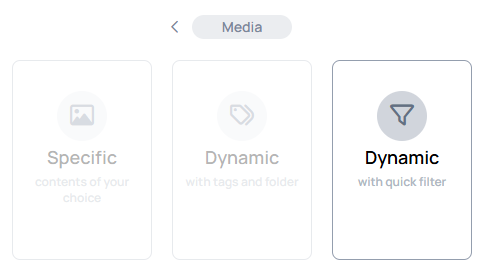
In creation modal you can revert the selected rule with the icon, but after save, the selected item rule will be permanent.
Content selector
When you choose a rule, a modal will open where you can select items to play inside channel.
- With the Quick filter selector you can add quick filters to define the media files as channel items:
Learn more: Quick filter
Default image and PDF duration
Defines the duration of the media files that have no native value.
- This value can be manually modified or manipulated via
Item durationin theHow to playmodal. - The default value is
10s
How to play settings
When you select items to play inside channel you can see the current settings on the top of the What to play modal.
- These settings can be modified in the
How to playsettings.

Open the How to play settings with the icon on the right-top corner of the What to play modal.