Internal Table Datasources
Internal datasources are useful if you like manually managing your data, whether it is a restaurant menu or a table with the contact details of your colleagues.
Create Internal Datasource
- Navigate to Settings > Datasources menu
- Click on the button next to the Datasources header.
- Select the Datasource structure type you wish to use.
- Fill the necessary settings fields. Learn more: Alternative Datasource Settings
If you want your datasource to be editable from contents, enable the Editable from display functionality in the datasource create/edit modal.
- After you finished the datasource configuration, click on the Save to create the datasource
- Or if you click
Save and Open, it will navigate to the Datasource editor.
After saving, your new datasource will appear in the list. Now you can start editing your table by clicking the icon.
For custom (JSON) datasources, see Internal Custom Datasources.
To share a datasource with non-Wallboard users via a link, see Shared Datasource Editor.
Table - Datasource Editor
Double-clicking on the names allows you to rename the elements for easier navigation.
Worksheets and Actions
Clicking the button next to the existent worksheet in the top-left corner allows you to add new worksheets.
- Here you can select from presets, or create a default worksheet.
- Double-clicking on the worksheet's name allows you to rename it for easier navigation. A confirmation prompt appears before the rename is applied, so accidental edits to the worksheet name can be canceled.
Flush Worksheet (2.1)
You can clear all row data in a worksheet while preserving the column structure.
- Useful for resetting data without recreating the table
- Access this option from the worksheet actions
Worksheet Locking (2.1)
You can lock a whole worksheet to protect its structure, so nobody reorganizes the table by accident.
- Lock or unlock the worksheet from the worksheet actions, next to Flush worksheet
- While it is locked, every blocked action shows a Spreadsheet locked tooltip explaining why it is unavailable
| Locked while the worksheet is locked | Still available |
|---|---|
| Editing and removing the worksheet itself | Sort ASC and Sort DESC |
| Edit column, Insert column left/right, Duplicate column, Move left/right, Remove column | Lock/Unlock on an individual column |
| Add column | Hide a column |
| Reordering columns by dragging them | Clear expired data |
Worksheet locking protects the worksheet's shape. Column locking protects one column's value type. Row locking protects the values in a row — that is the one to use when the data itself must not be overwritten.
Import from JSON
Rather than building a table column by column, you can paste it in as JSON in one go — useful for a table you already have in another format, or one an AI assistant wrote for you.
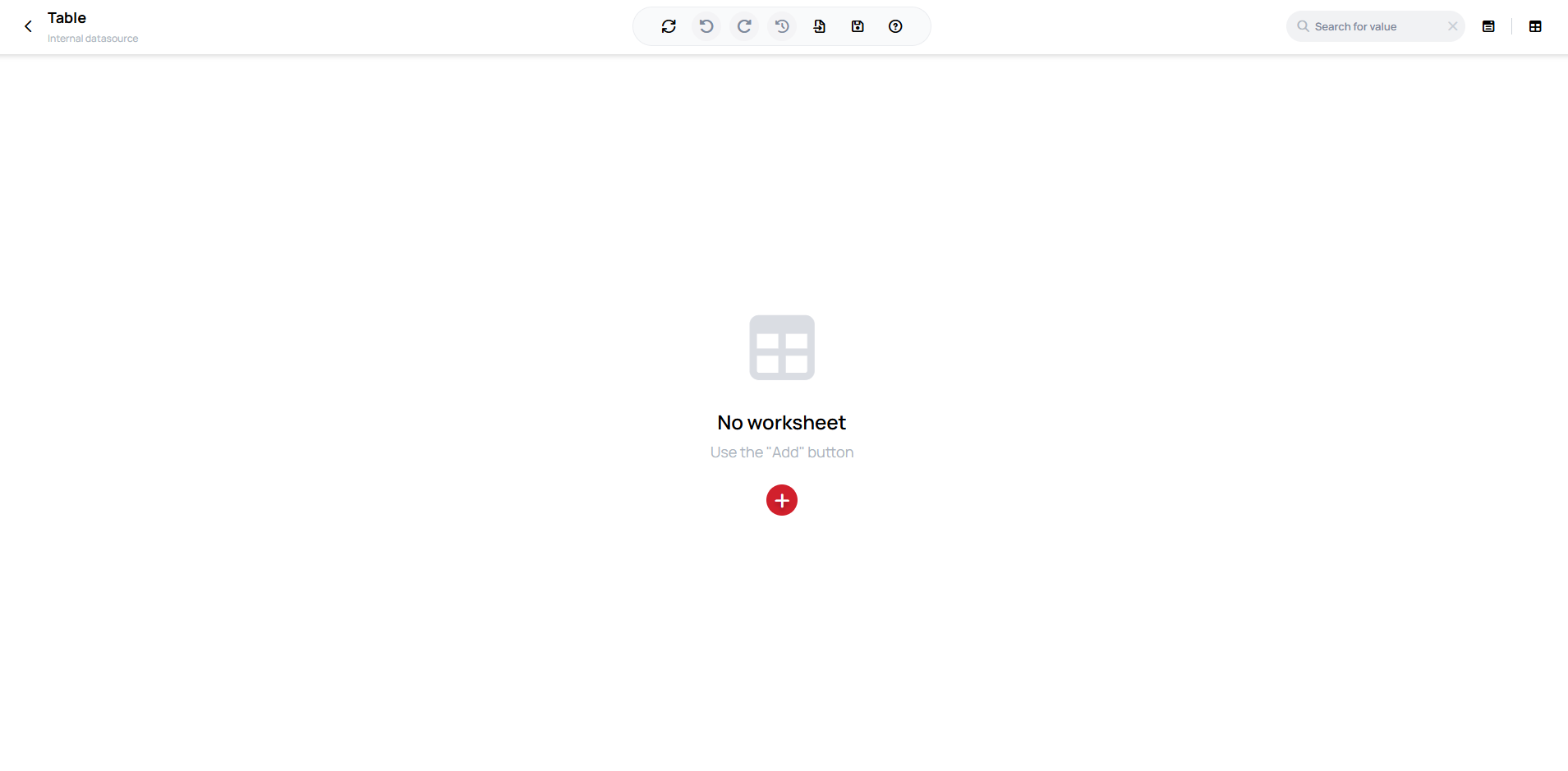
A freshly created table datasource opens with no worksheet at all:
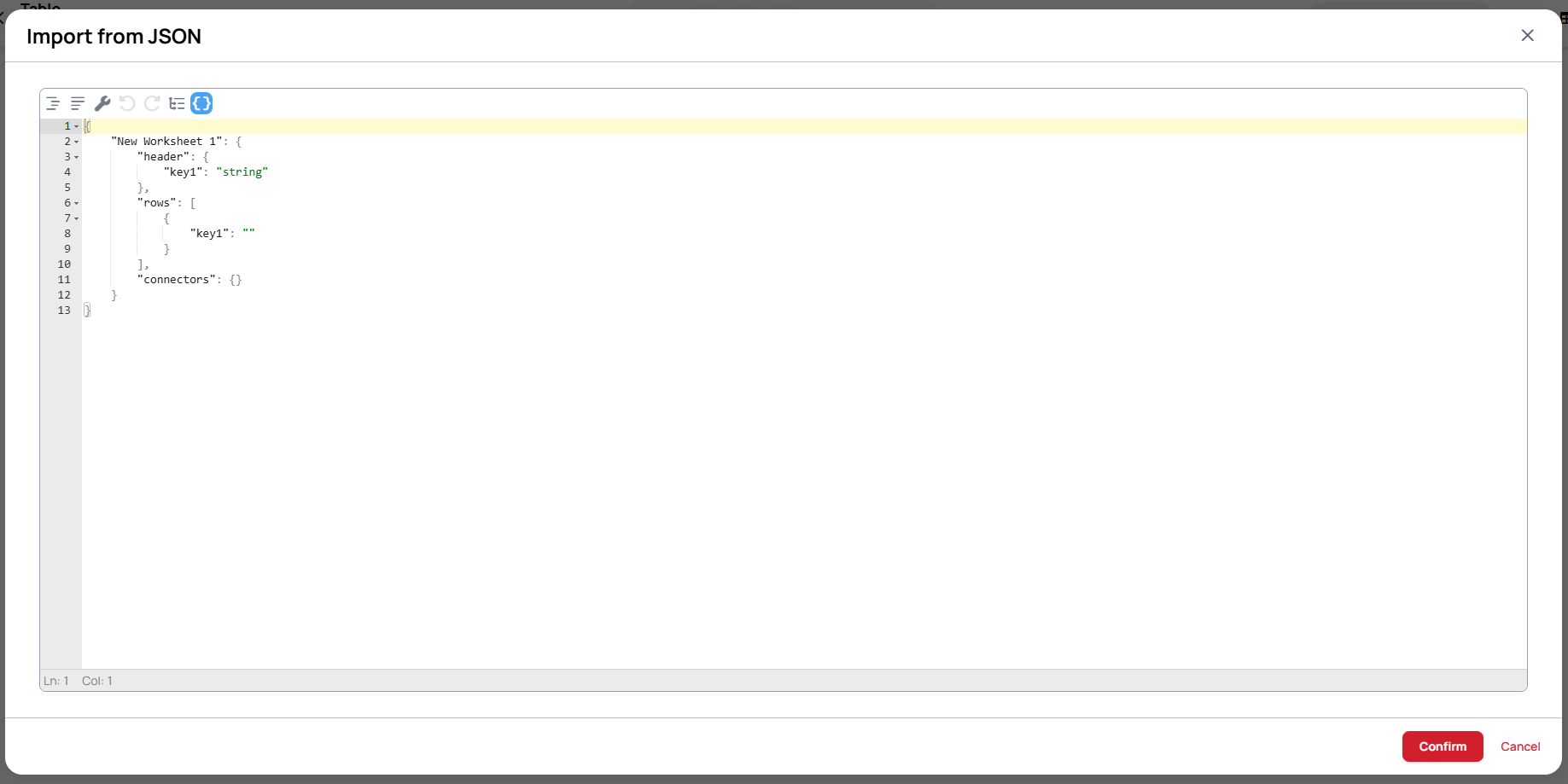
Next to Save, in the editor's top toolbar, click the Import from JSON icon. A modal opens with a template to start from:
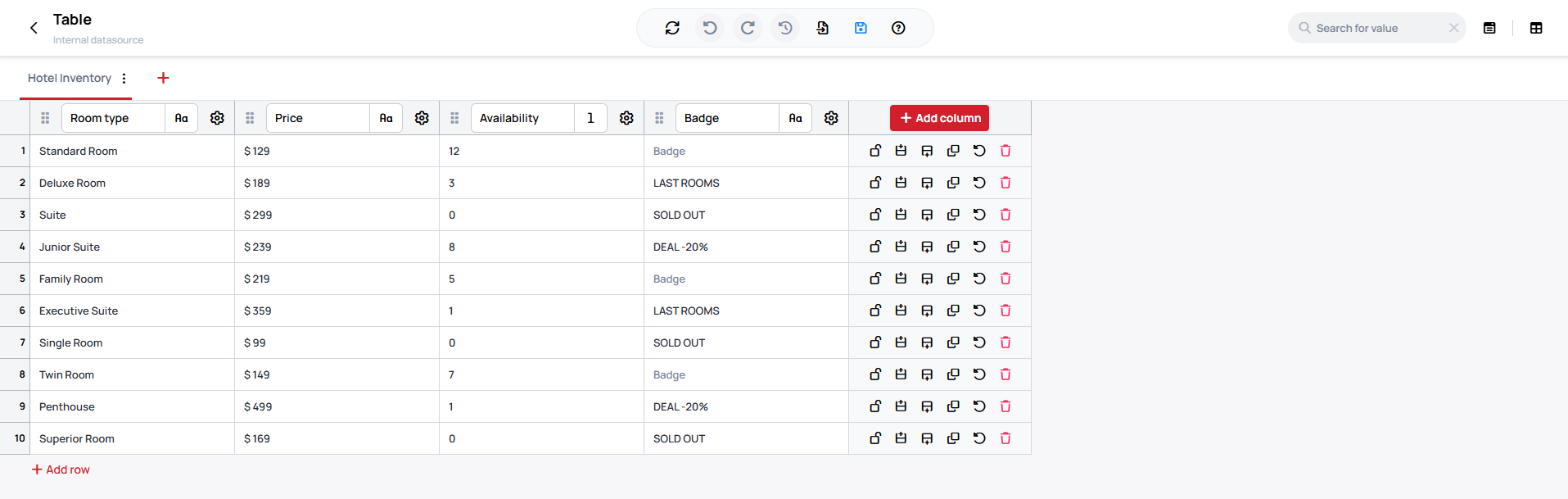
For example, a small hotel room-inventory table:
{
  "Hotel Inventory": {
    "header": {
      "Room type": "string",
      "Price": "string",
      "Availability": "number",
      "Badge": "string"
    },
    "rows": [
      {
        "Room type": "Standard Room",
        "Price": "$ 129",
        "Availability": 12,
        "Badge": ""
      },
      {
        "Room type": "Deluxe Room",
        "Price": "$ 189",
        "Availability": 3,
        "Badge": "LAST ROOMS"
      },
      {
        "Room type": "Suite",
        "Price": "$ 299",
        "Availability": 0,
        "Badge": "SOLD OUT"
      },
      {
        "Room type": "Junior Suite",
        "Price": "$ 239",
        "Availability": 8,
        "Badge": "DEAL -20%"
      },
      {
        "Room type": "Family Room",
        "Price": "$ 219",
        "Availability": 5,
        "Badge": ""
      },
      {
        "Room type": "Executive Suite",
        "Price": "$ 359",
        "Availability": 1,
        "Badge": "LAST ROOMS"
      },
      {
        "Room type": "Single Room",
        "Price": "$ 99",
        "Availability": 0,
        "Badge": "SOLD OUT"
      },
      {
        "Room type": "Twin Room",
        "Price": "$ 149",
        "Availability": 7,
        "Badge": ""
      },
      {
        "Room type": "Penthouse",
        "Price": "$ 499",
        "Availability": 1,
        "Badge": "DEAL -20%"
      },
      {
        "Room type": "Superior Room",
        "Price": "$ 169",
        "Availability": 0,
        "Badge": "SOLD OUT"
      }
    ],
    "connectors": {}
  }
}
Paste your own JSON in, matching the same header / rows / connectors shape:
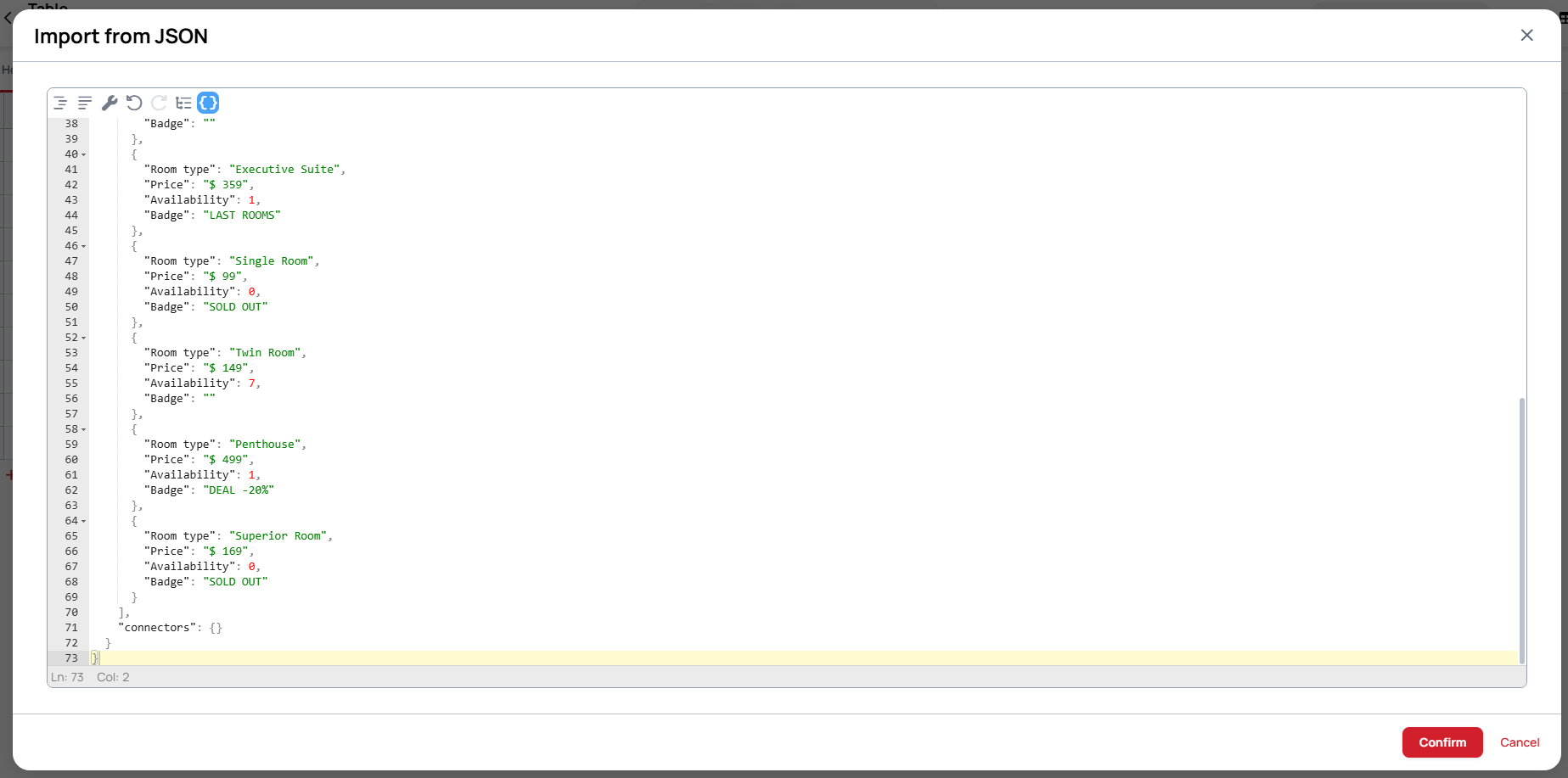
Click Confirm, and the worksheet appears with every row and column already filled in:
If what you paste isn't valid JSON, the editor flags it and won't let the import through — there's no way to accidentally wreck the table with a bad paste.
Custom View
In custom view you can see the whole JSON file.
Searching the table (2.1)
The search box above the table highlights every matching cell — it does not hide the rows that do not match, so the table keeps its shape and you can see where the matches sit in it.
- Matching is case-insensitive and matches anywhere inside a value, not just at the start
- Boolean, Color, Date, Time, Datetime, Number, Dropdown and the text types are all searched, each by the value you see in the cell
- File picker and Folder picker columns match on the name of the selected file or folder
- Scheduling columns are not searched — a Scheduling cell never matches, whatever you type
- Times are matched as they are displayed, so
pmfinds afternoon values while the 12-hour clock is in use
Adding Columns and Rows
Clicking the Add column and Add row buttons you can add new columns and rows to your table.
Column Types
When creating or editing a column, you can select from the following value types:
| Type | Description |
|---|---|
| String | Single-line text |
| Text | Multi-line text |
| Number | Numeric values |
| Boolean | True/false checkbox |
| Color | Color picker (hex value) |
| URL | Clickable links |
| Date | Date picker (2.1) |
| Time | Time picker (2.1) |
| Datetime | Combined date and time picker (2.1) |
| Scheduling | Interval-based scheduling with day/hour rules (2.1) |
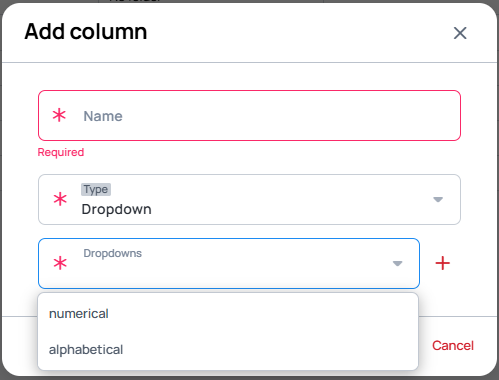
| Dropdown | Fixed value list, configured via Dropdown Manager (2.1) |
| File picker | Select a file from the media library |
| Folder picker | Select a folder from the media library |
Row Actions
- Insert above / Insert below: Add new rows at different positions.
- Duplicate: Duplicate a row by clicking the button.
- Reset row values (2.1): Clear a row back to the empty value for each column's type, keeping the row itself. Cells in locked columns keep their values, and the action is unavailable on a locked row.
- Remove: Remove a row by clicking the button.
Row Locking (2.1)
You can lock individual rows to prevent their cell values from being overwritten.
- Lock or unlock rows via the row actions menu
- Locked rows display a lock icon and their cells cannot be overwritten or removed
- Any user with EDIT permission on the datasource can lock and unlock rows
- Use case: protect template rows, recurring events, or reference data that should not be changed
Column Actions
The icon next to the column header will open a dropdown with the following options:
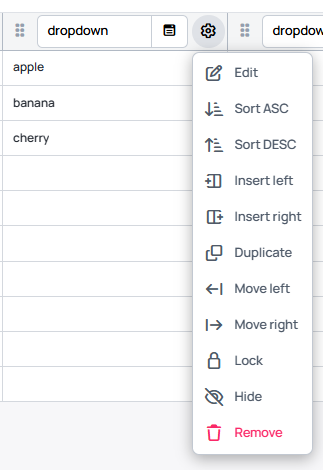
Edit Column
Clicking the icon or double-clicking on the column header allows you to rename the column and select a different value type.
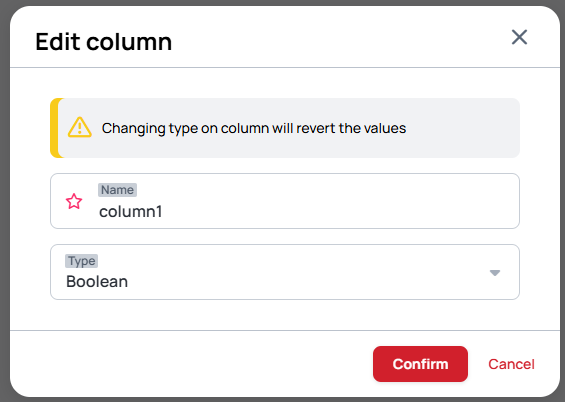
Insert Left / Insert Right
Add new columns at different positions. When you do this, you have to name your column and select a type for it.
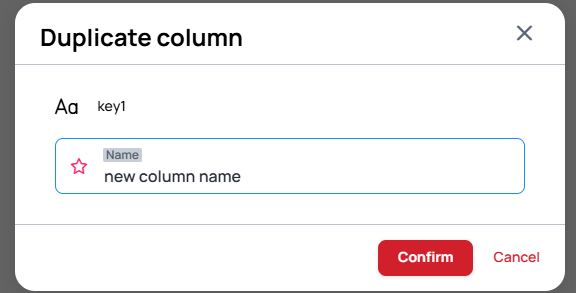
Duplicate Column
Duplicate a column by clicking the button and entering a new column name.
Move Left / Move Right
Move columns to different positions. You can also relocate columns by dragging and dropping them into the right place.
Remove Column
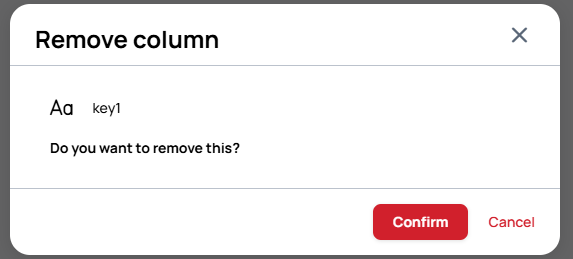
When you choose to remove a column, you must confirm the deletion in the confirmation modal.
Column Locking (2.1)
You can lock a column to protect its column type. Locking a column prevents its value type from being changed — it does not lock the values in the column's cells (use Row Locking to protect cell values).
- Lock or unlock columns via the column settings menu
- Locked columns show a lock icon on the column header
Column Sorting (2.1)
Sort table data by any column in ascending or descending order.
- Select the sort option from the column settings menu
- Sorting is applied to the current worksheet view
Column Hide/Collapse (2.1)
Temporarily hide columns from the table view to reduce clutter.
- Hide columns via the column settings menu
- Hidden columns can be shown again from the column settings
Clear expired data (2.1)
Available on Scheduling, Date, and Datetime columns. Removes rows where the column's date has already passed or the configured schedule has expired.
- This is a manual action — open the column settings menu on a Scheduling, Date, or Datetime column and click Clear expired data. Expired rows are not removed automatically.
- Only rows expired relative to the current time are removed; future-dated and currently-active rows are kept.
- Useful for keeping time-sensitive datasources (event lists, promotions, scheduled messages) free of stale rows.
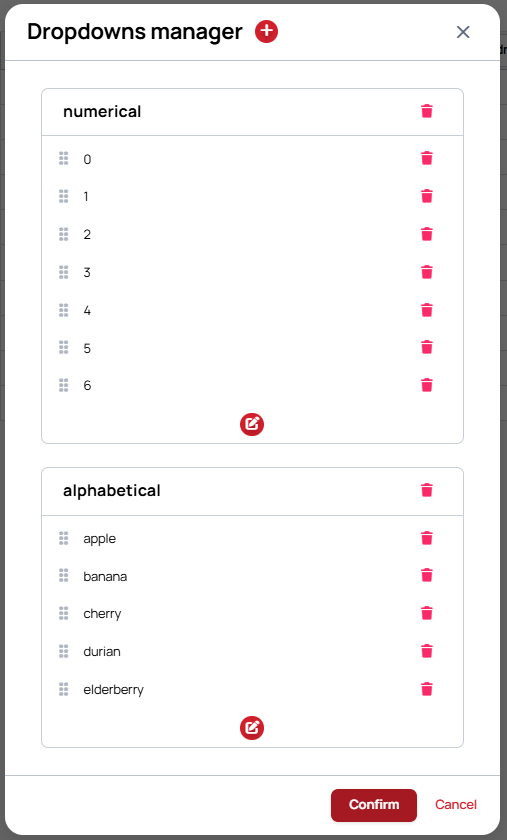
Dropdown Manager (2.1)
For columns of type Dropdown, you can define a fixed list of allowed values.
- When a dropdown list is configured, freetext input is disabled — only values from the list can be selected
- Manage dropdown options from the column settings menu
- Dropdown values are stored in the datasource configuration
When the Dropdowns manager is first opened, it is empty — click the button to add the first dropdown.
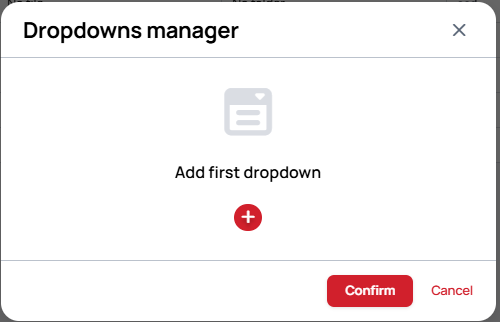

Once values are defined, they appear in the Dropdowns manager list:
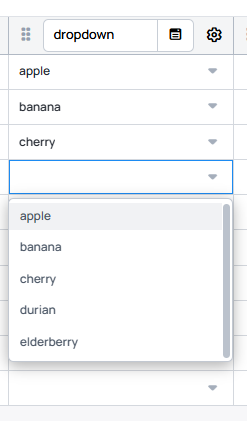
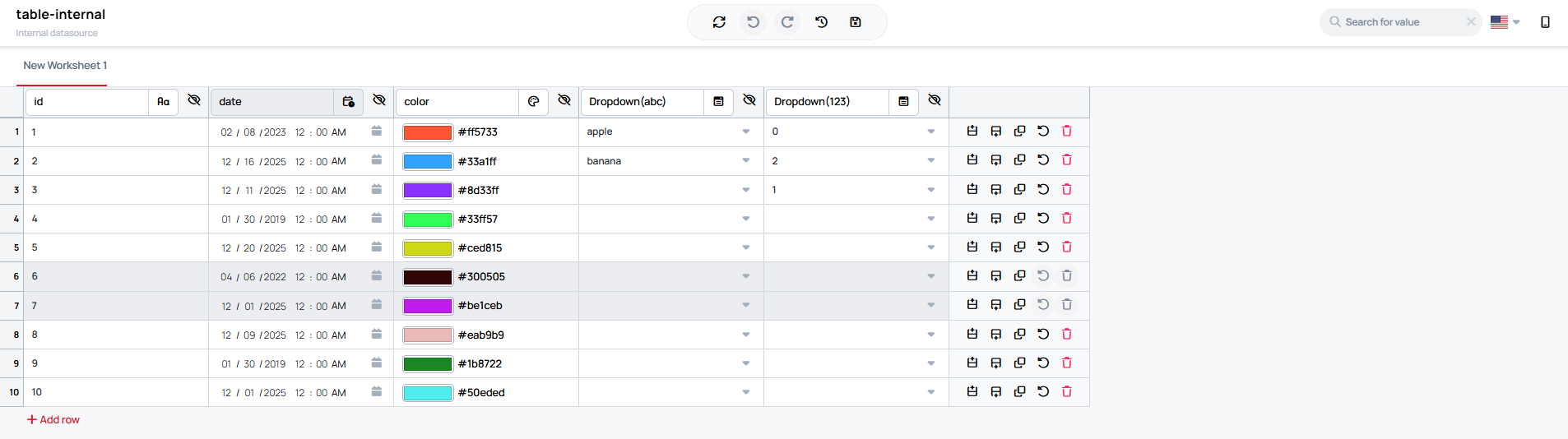
In the table, cells in a Dropdown column present the configured values as a picker: