Web scraper datasource
The Web scraper datasource turns a web page that has no export, feed or API into data you can bind to Widgets. Give it the address of one page and describe in plain language what you want from it: Wallboard opens the page in a real browser, scrolls through it so lazy-loaded content appears too, and AI extracts the data into JSON in the structure you choose. It refreshes on a schedule like any other external datasource.
The AI reads only the page you point it at — it doesn't search the web or open other pages to fill gaps. If something isn't on the page, the AI is instructed to leave that field empty rather than guess.
If the site offers an RSS feed, a JSON or XML endpoint, or a spreadsheet export, use that datasource instead — it's cheaper and more predictable than AI extraction. Learn more: Where does your external data come from?
They are two different datasource types. The Web scraper is an external datasource that extracts data from one page you choose. The AI datasource is a system datasource that works from a prompt alone: it can search the web, call other tools, and combine your existing datasources. Reach for the Web scraper whenever the data already sits on one public page. Learn more: AI datasource
When to use it
- A page shows the information you need, but has no feed, API or export — opening hours, a menu, a price list, an event listing, a public timetable.
- The page opens without signing in.
- The data changes a few times a day, not every minute.
Before you start
- The page must be public. Wallboard loads it without any login, cookies or custom headers, so content behind a sign-in, a paywall or a consent wall that hides the page won't come through.
- Every refresh uses AI tokens. Usage is counted per customer against an hourly and a monthly token limit; once a limit is reached, refreshes are blocked until the next window opens. The limits — and the option to use the customer's own xAI or Google Gemini key instead of Wallboard's shared one — are set under AI API keys.
Create the datasource
- Go to Datasources and open the External Datasources tab.
- Add a new datasource and choose Web scraper as its type.
- Set how often it refreshes. Learn more: Refresh and caching
- Fill in the Web scraper settings described below, then save.
The first refresh takes a little longer than a regular datasource: the page has to load in the browser, then the AI has to read it.
Web scraper settings
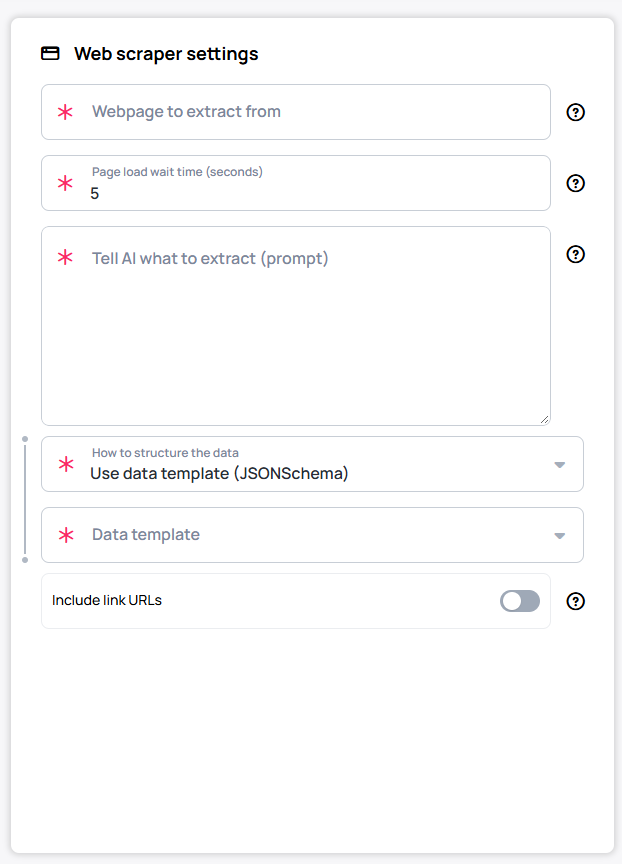
| Setting | What it does |
|---|---|
| Webpage to extract from | The full address of the page, including https://. One page per datasource. |
| Page load wait time (seconds) | How long to wait after the page loads before reading it, so images and dynamic content have time to appear. Between 5 and 20 seconds; the default 5 is usually enough. Increase it for slow pages. |
| Tell AI what to extract (prompt) | Plain-language instructions: what data you want and how it should be organized. See Writing the prompt. |
| How to structure the data | The shape of the output. See How to structure the data. |
| Data template | Appears with Use data template (JSONSchema): pick a ready-made template or Custom (define your own). |
| Include link URLs | Off by default, and then the addresses behind links are dropped before the AI reads the page. Turn it on when you need them — for example, a link to each article in a news list. It increases token usage. |
Writing the prompt
The prompt is the part that decides the quality of the result. A good prompt:
- Names every field you want and says what goes in it — for example, price as a number, without the currency sign.
- Says what to skip — navigation, ads, cookie banners, sold-out items.
- Keeps the page's order, or names the order you want.
- Sets the language. Text values come back in the language you write the prompt in, so write it in the language the screen should show.
- Asks for real image addresses only. For images, tell the AI to return only image URLs that exist on the page; turn on Include link URLs if those addresses sit behind links.
Relative dates work: the AI is given the current date and time, so events from today onward or this month's opening hours resolve correctly.
List every dish on this menu with its name, its short description, its price as a number in EUR, and whether it is vegetarian (true or false). Keep the order of the menu. Skip drinks.
How to structure the data
Widgets are bound to paths in the data, so the more stable the shape, the more reliable the screen. How to structure the data offers three options:
- Let AI choose format (automatic) — the fastest to set up: the AI decides the structure. Handy for a first test, but the shape can differ between refreshes, which breaks bindings.
- Provide example structure (JSON) — paste a sample of the output you expect, filled with example values. The AI copies its shape.
- Use data template (JSONSchema) — the default, and the most reliable: the output must match the schema, all required fields included. Choose a ready-made Data template — Calendar events, Multiple tables or News/Content feed — or Custom (define your own) to paste your own schema.
Example JSON
{
  "items": [
    {
      "type": "",
      "image": "",
      "weight": "",
      "ingredients": ""
    }
  ]
}
Provide example structure (JSON) expects sample data — a real-looking JSON object with example values — not a JSON Schema. If you paste a schema (an object with $schema, type, properties and so on), the editor warns you: "It looks like you pasted a JSON schema. Please provide a sample of the JSON data you expect as output, not a schema definition." Switch to Use data template (JSONSchema) and paste it there instead.
Example JSON Schema
{
  "$schema": "http://json-schema.org/draft-07/schema#",
  "type": "object",
  "properties": {
    "items": {
      "type": "array",
      "items": {
        "type": "object",
        "properties": {
          "type": {
            "type": "string"
          },
          "image": {
            "type": "string"
          },
          "weight": {
            "type": "string"
          },
          "ingredients": {
            "type": "string"
          }
        },
        "required": ["type", "image", "weight", "ingredients"]
      }
    }
  },
  "required": ["items"]
}
Refresh, caching and advanced settings
The rest of the editor works the same as for any external datasource:
- Refresh and caching — how often the page is read, and whether images found in the data are cached. Learn more: Refresh and caching
- Advanced settings — teams, auto-deactivation, the error counter, and transformations that filter or shuffle the data after it arrives. Learn more: Advanced datasource settings
Every refresh is a new AI call. A page refreshed every 15 minutes uses four times the tokens of one refreshed hourly — pick the slowest interval the content allows.
Check the result
- After the first refresh, open the datasource and check the data: every field filled, nothing invented, the right number of items.
- Each refresh writes an entry to the Logs Menu with the tokens used, the AI model and the duration — the quickest way to see what one refresh costs.
Troubleshooting
| What you see | Likely cause | What to do |
|---|---|---|
| Empty data, or fields missing | The content hadn't loaded yet, or the page needs a login | Raise Page load wait time (seconds). Check that the page opens in a private browser window without signing in. |
| The log reads refresh blocked: token budget exhausted | The customer reached its hourly or monthly token limit | Wait for the next window, refresh less often, or adjust the limits under AI API keys. |
| The log reads HTML content is too large for AI transformation | The page is over 200,000 characters | Point at a narrower page (one category rather than the whole catalog), or turn off Include link URLs. |
| Link addresses are missing | Include link URLs is off | Turn it on. |
| Image addresses don't open | The AI returned addresses that aren't on the page | Tell the prompt to return only image URLs that exist on the page. |
| Bindings break after a refresh | The data's shape changed | Switch to Use data template (JSONSchema). |
If you have further questions, contact us at [email protected].