Scheduling - When to Play
OnlyPlay is a flexible scheduling system that allows you to pre-define the exact hours, days, dates, or time periods when your items are active.
- Make sure the time zone settings of your device is configured correctly so the Scheduling can keep your settings!
Where can I find When to Play modals?
- Right side of the Playlist Editor, on the page cards, and in the Scheduler view.
- In the mid-section of the Channel Editor / Sub-Channel Editor / Schedule Editor called
When to play?.
Scheduling settings
Basic Scheduling settings
If you do not define any different scheduling that means the page will play indefinitely without end date or time restrictions.
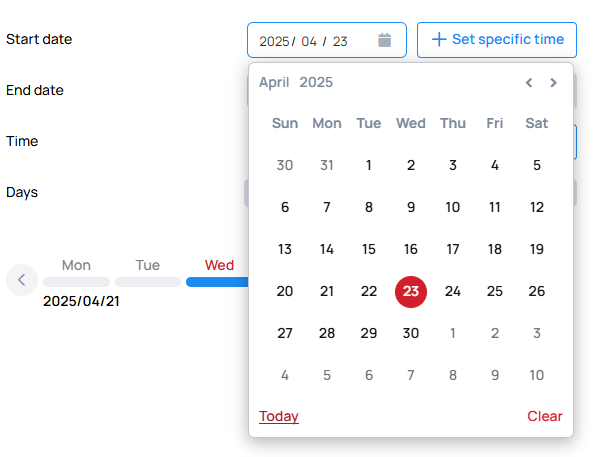
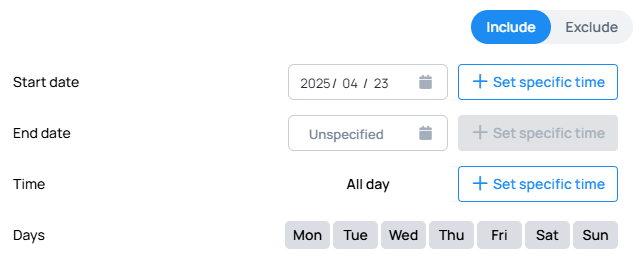
Start date
Start date is the creation date by default, but you can select a different date for this purpose in the calendar dropdown.
- According to the start date you defined will the channel / sub-channel / schedule start playing.
- You can also Set specific time when should the items start to play.
End date
End date is not defined by default, but you can select a date for this purpose in the calendar dropdown.
- According to the End date you defined will the channel / sub-channel / schedule stop playing.

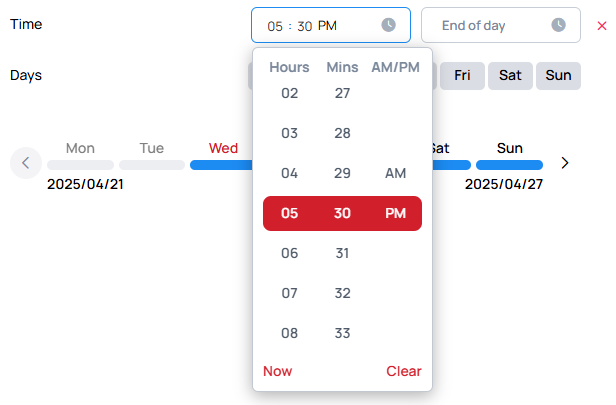
All day or Specific time interval
This option is disabled by default, which means the page can play all day long from 12:00AM to 11:59PM.

- If you enable this option, you have to define a time interval for your item
Days
This default setting keeps your content page active every day of the week.
- If you turn it off, you must select at least one day for the content page to run in the Affected days.

Advanced Scheduling settings
These overflow settings are only available if the start date is later than the end date.
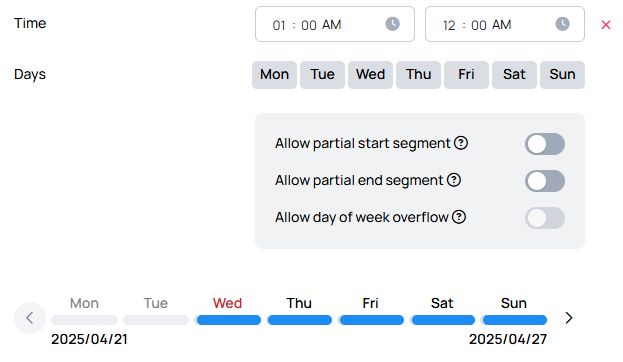
Allow Partial starting segment
While the Start hours are later than the End hours, allow segments that only last after midnight on a given day.
- This option appears only if the All day option is disabled, and the From-time is later than the Start-time.
Allow Partial ending segment
While the End hours are later than the Start hours, allow segments that only last before midnight on a given day.
- This option appears only if the All day option is disabled, and the From-time is later than the Start-time.
Allow day of a week overflow
While the Start hours are later than the End hours, allow the part after midnight to go over the next day if the next week day is not selected.
- This option appears only if the All day option is disabled, and the From-time is later than the Start-time.
- Cannot be enabled if the
Allow Partial ending segmentis disabled
Complex scheduling
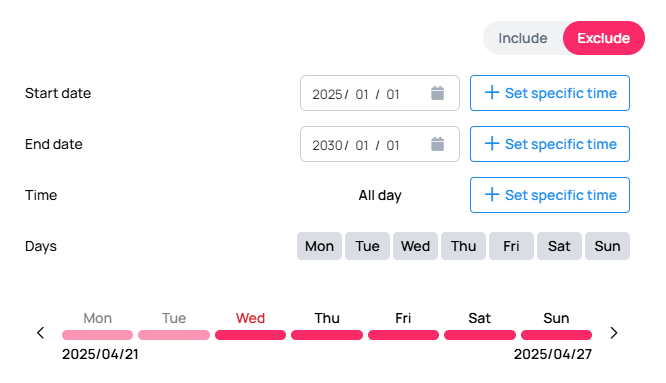
Excluded
Disabled by default. When enabled, your items will NOT play during the specified interval.
Add specific date
Add a new only play block with a start date and a specified time interval which can be included or excluded.

Add date range
Add a new only play block with a start and end date, a specified time interval and custom selected days, also you can decide if this schedule is included or excluded.
Playlist exclusive scheduling features
Copy/Paste Scheduling
Copy then paste the current interval block to create a new one.
Scheduler view
In scheduler view you can select pages and see the timetable of the current playlist.
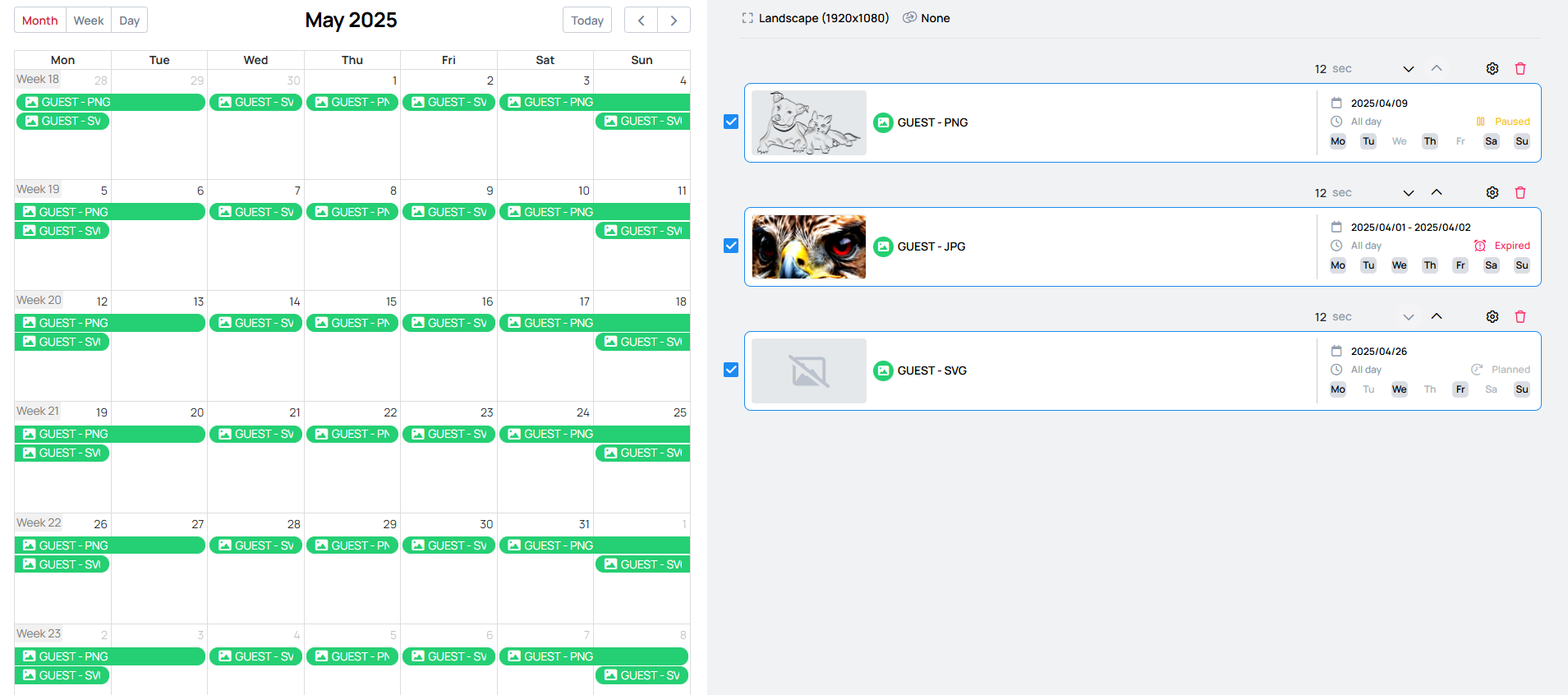
Status indicators
Each item can have a status, which can be depending on the schedule settings you configured in the When to play modal.
- Each status has its own icon, which you will see on the left side of the item card:
| Planned | Active | Stopped | Paused | Expired |
|---|